Workplace & team
Workplace is your organization's control panel — the account details, the people on your team, your organization's verification (KYC), and your invoices. Set it up once so everyone has the right access and your organization is verified.
Open Workplace (/workplace).
Account Info
Account Info holds your organization's profile — the details that identify your organization across the platform. Keep it accurate; it's the source of truth for who you are as an account.
Team Members
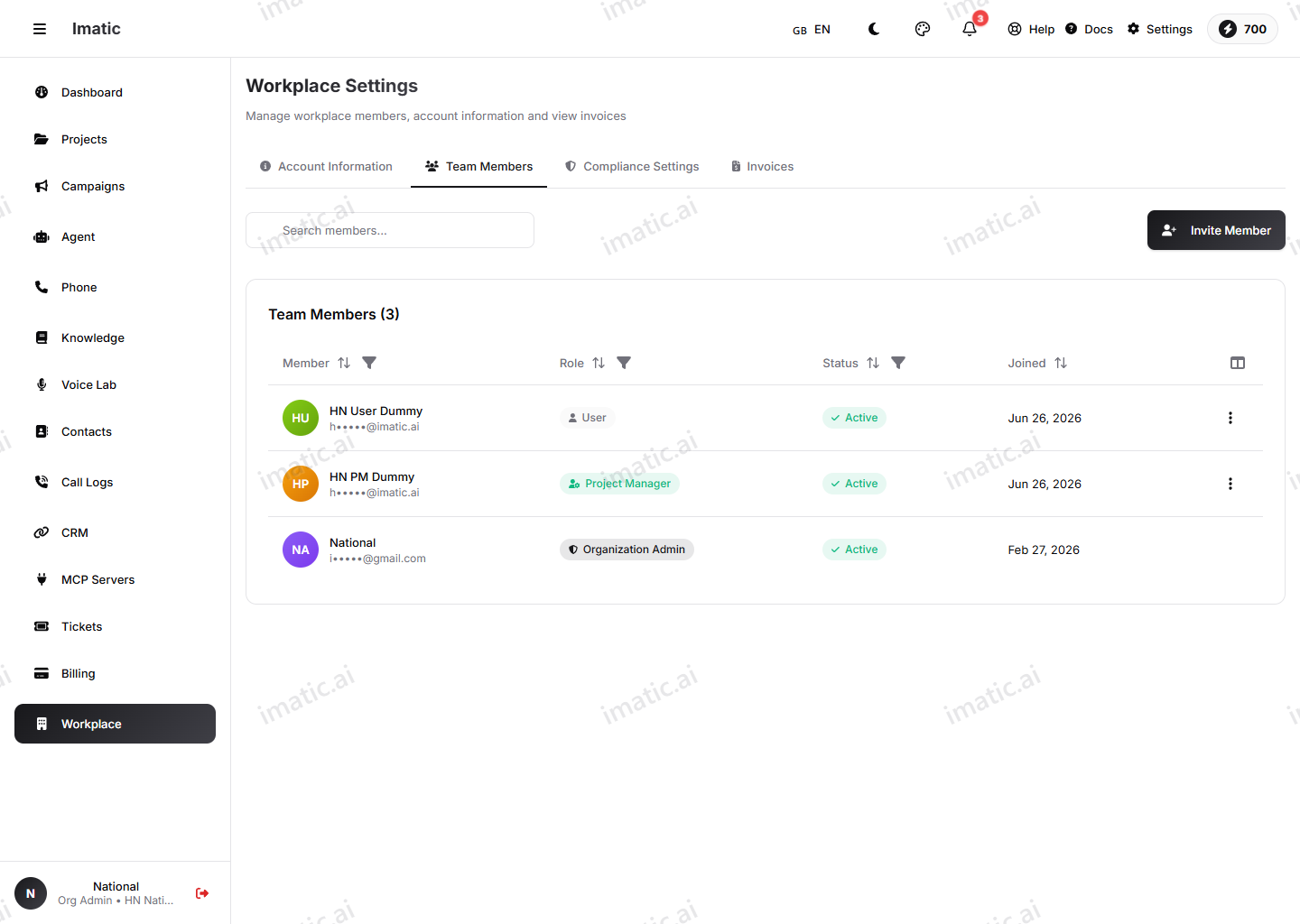
Team Members is where you bring people into your organization and decide what they can do.
Invite a member
- Open Team Members.
- Invite a person by email. They receive an invitation to join your organization.
- The invitee accepts and sets up their login, then appears in your team list.
Roles
Each member has a role that controls their access:
- Organization admin — the organization owner; full access, including billing and team management.
- Project manager — manages work within a project's scope.
- Member — view and limited access.
Assign the lowest role that lets someone do their job. You can read more about the model in Organization login.
Reserve organization admin for the few people who genuinely need billing and team control. Everyone else can usually do their work as a project manager or member.
Compliance
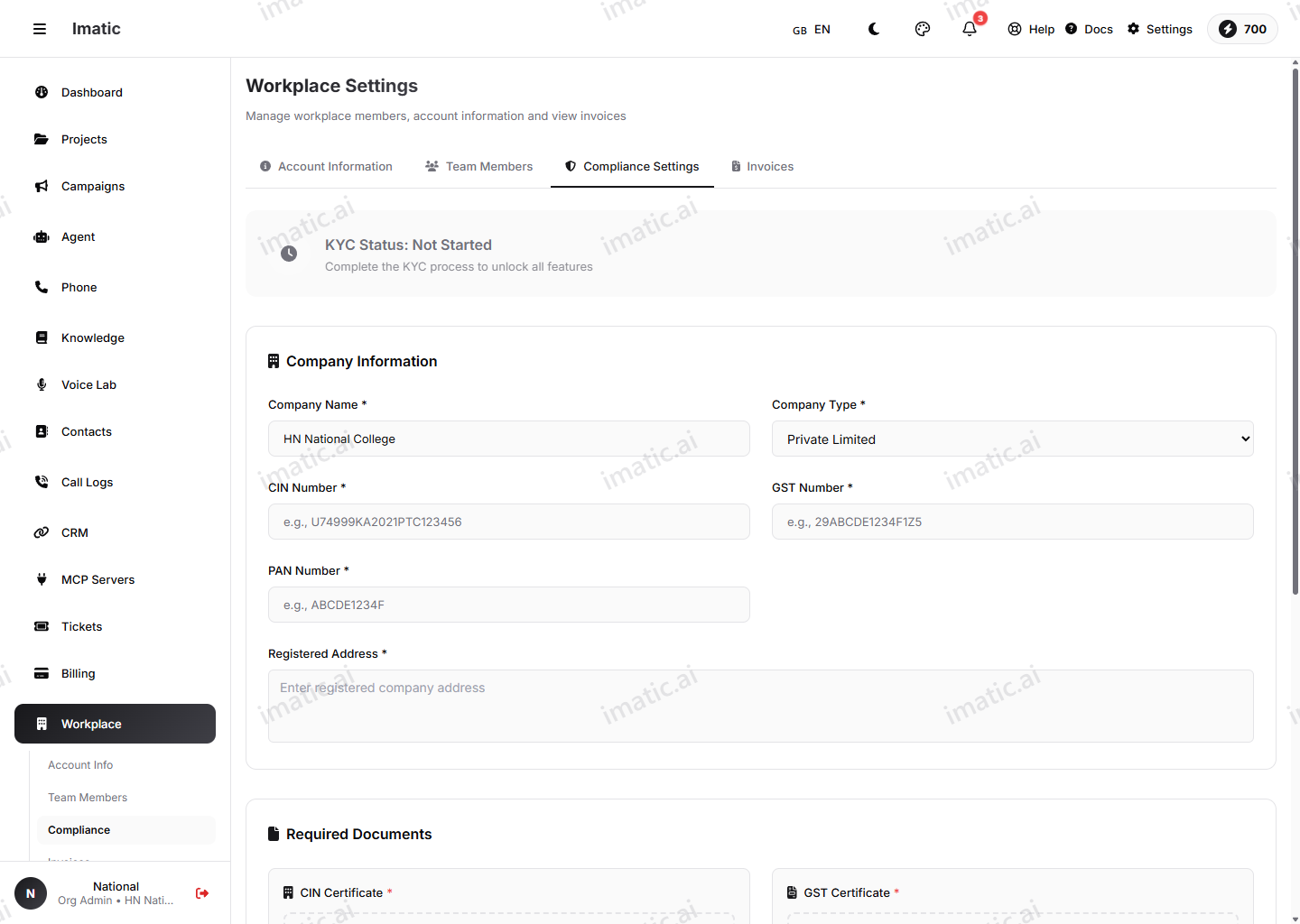
The Compliance section is where you verify your organization (KYC). Provide your company information — name, type, CIN, GST and PAN numbers, and registered address — then upload the supporting documents:
- CIN Certificate — required.
- GST Certificate — required.
- PAN Card — required.
- Address Proof — optional.
When everything is in place, submit for review. Your application moves through clear statuses — Not Started, Pending, Under Review, Approved or Rejected — so you always know where it stands. Reviews usually take 1–2 business days.
While an application is under review you can still swap a supporting document; to change identifiers (CIN / GST / PAN / address) use Void & Edit first, then resubmit. If an application is rejected, the reason is shown so you can fix it and resubmit. Completing verification unlocks all features for your organization.
Upload clear PDF, JPG or PNG files (max 5 MB each), and make sure your CIN, GST and PAN match the format printed on your certificates so the review passes the first time.
Invoices
The Invoices section lists your organization's billing documents for download and your records. For live balance, usage and top-ups, see Billing & wallet.