CRM integrations
Connect your CRM to import its contacts and leads into imatic, so your agents call from the data your team already maintains. The CRM connection is a one-way import into imatic — it pulls contacts and leads in; it does not write anything back to your CRM.
Open CRM (/crm).
Connect your CRM
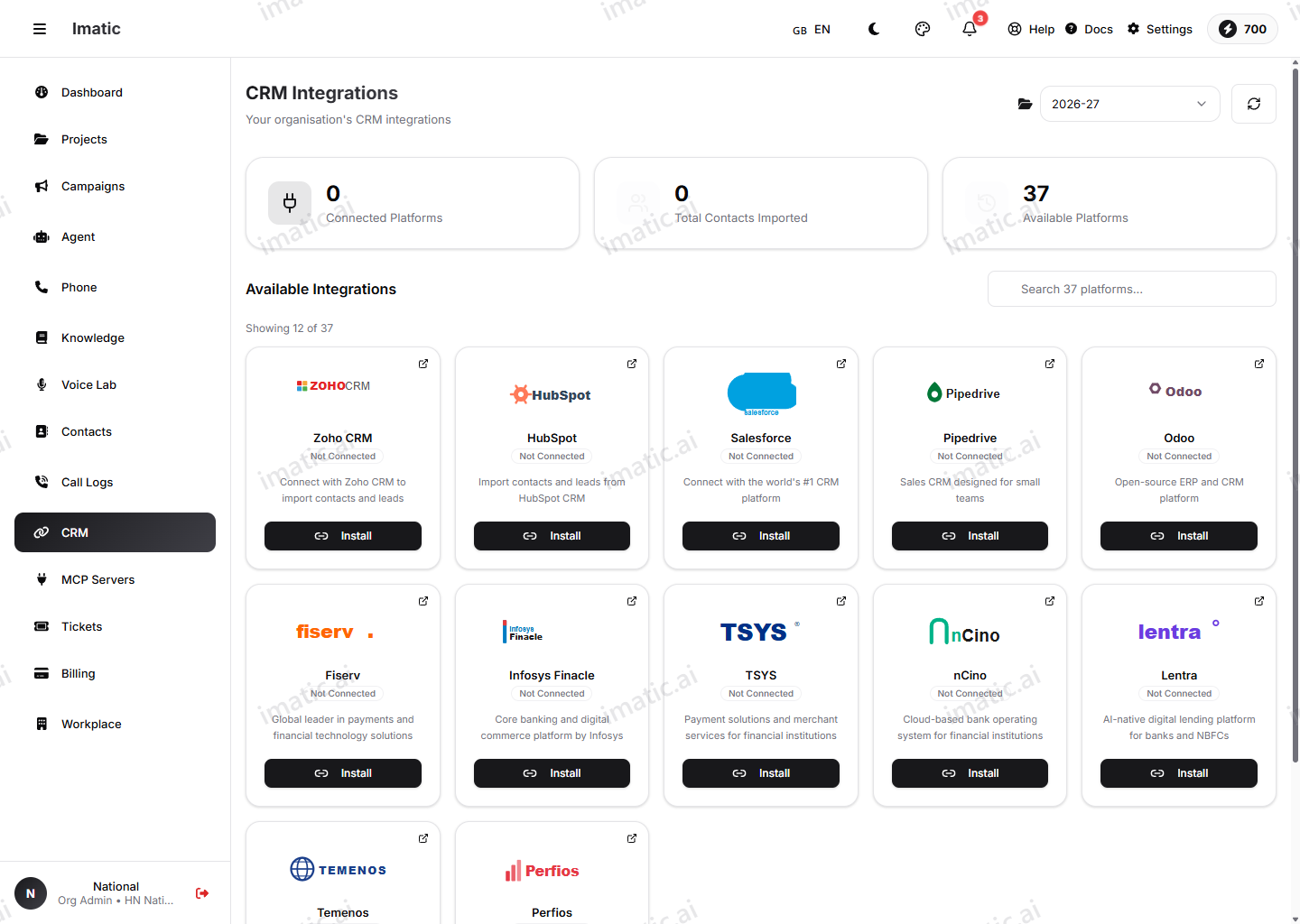
imatic supports a broad catalogue of CRM and business platforms — over two dozen in total. Zoho is the most fully supported and has its own dedicated setup, alongside platforms such as:
- Salesforce, HubSpot, Pipedrive, Dynamics 365
- Zendesk, Odoo, Freshsales, SugarCRM, ActiveCampaign, Bitrix24
- Enterprise banking connectors: Fiserv, Finacle, TSYS, nCino, Temenos, Perfios
- and many more.
How you authenticate depends on the platform — not all use OAuth. Many (Zoho, Salesforce, HubSpot, Pipedrive, Dynamics 365, and others) use OAuth, where you sign in to the platform and authorize the connection so you never paste passwords into imatic; others use an API key or a platform-specific method.
- Choose your platform.
- Authenticate the way that platform requires — OAuth sign-in, or an API key you paste in.
- Return to imatic, where the connection is now active.
The connection requests read-only access (for OAuth platforms, the scopes are read scopes such as Zoho's ZohoCRM.modules.contacts.READ). imatic reads your contacts and leads; it does not create, update or delete records in your CRM.
Import contacts and leads
Once connected, you control what imatic pulls in:
- Import contacts — bring your CRM contacts into imatic so agents can call them.
- Import leads — bring in leads for follow-up work.
- Auto-import leads — keep pulling in new leads automatically as they appear in your CRM.
This is a one-way flow: records move from your CRM into imatic. Call outcomes, recordings and summaries stay in imatic (Call logs) — they are not pushed back to the CRM.
Field mapping
Every CRM models its data a little differently, so field mapping lets you match imatic's contact fields to the corresponding fields in your CRM — including any custom fields you've added. Map them once, and each imported value lands where it belongs.
Map your phone and key identifier fields carefully before importing. The phone number is what your agents dial and what matches a call back to the right record, so getting it right up front avoids duplicate or mismatched records later.
MCP Servers
Beyond CRMs, imatic can connect to external tools and data through the Model Context Protocol (MCP) — an open standard for giving an AI agent access to outside systems. On the MCP Servers page (/integrations/mcp-servers) you bring those systems into the Portal in three steps:
- Register an MCP server and provide its credentials.
- Discover the functions that server exposes.
- Bind the functions you want to an agent, so it can call them mid-conversation.
This gives your agents new capabilities during a call — looking something up or taking an action in a system the Portal doesn't natively integrate with — without custom plumbing in each agent. For wiring tools and functions on the agent itself, see Tools & MCP.