Contacts
Contacts is the address book and lightweight CRM behind your calling. Everyone your agents call lives here, along with the leads they generate and the callbacks they schedule. Import people in bulk, enrich them with custom fields, score them, and tag them with a segment label you can filter and sort by.
Open Contacts (/contacts). Contacts belong to a project, so they're scoped to the project you're working in.
All Contacts
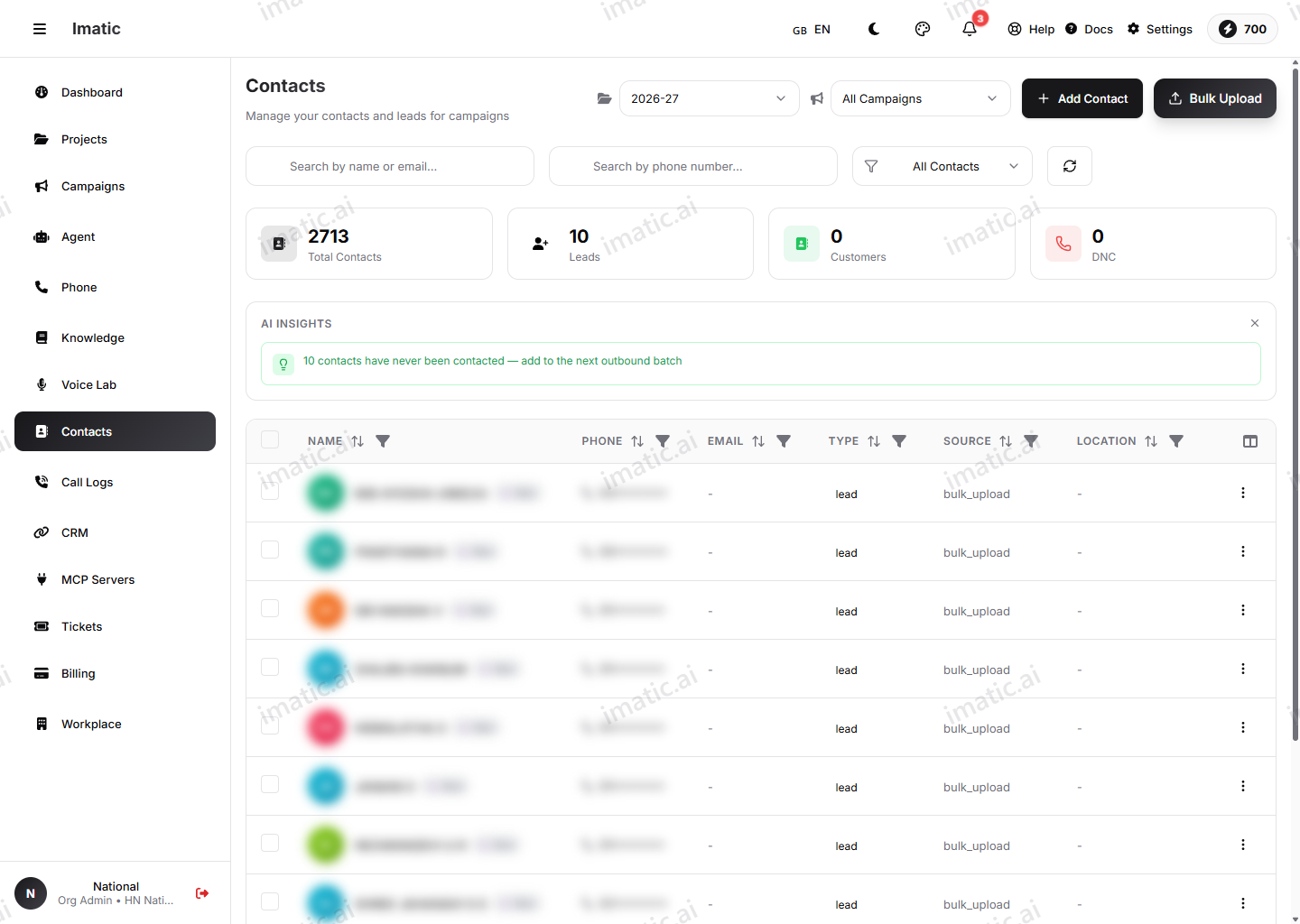
The main contacts list shows everyone in the project. From here you can:
- Search and filter to find people.
- Open a contact to see their details, custom fields and call history.
- Add a contact by hand, or bring many in at once with Bulk upload.
- Start calls to one or more contacts with the bulk-call modal.
Leads
The Leads view (/contacts/leads) focuses on the contacts flagged as sales or follow-up opportunities. Stat cards across the top track Total, New, Qualified and Converted (contacts that became customers). Each lead moves through a pipeline stage — New, Contacted, Qualified, Proposal, Negotiation, Won or Lost — shown as a colored badge, and the table also lists the contact's phone/email, source, lead score, location and date added. Search by name or phone and filter by stage or project to work the people most worth your attention first.
Callbacks
The Callbacks view (/contacts/callbacks) is the queue of scheduled call-backs — typically created when a contact asked to be reached at a specific time, or when a call needs another attempt. Each entry carries a scheduled time, a priority, a reason, the contact and agent, and a status (Pending, Confirmed, Completed, Missed or Cancelled). Stat cards highlight what needs attention — Total, Pending, Today and Overdue — and you can place the return call straight from the row. Work the queue so promised callbacks actually happen. Callbacks also surface alongside your call records.
Bulk upload
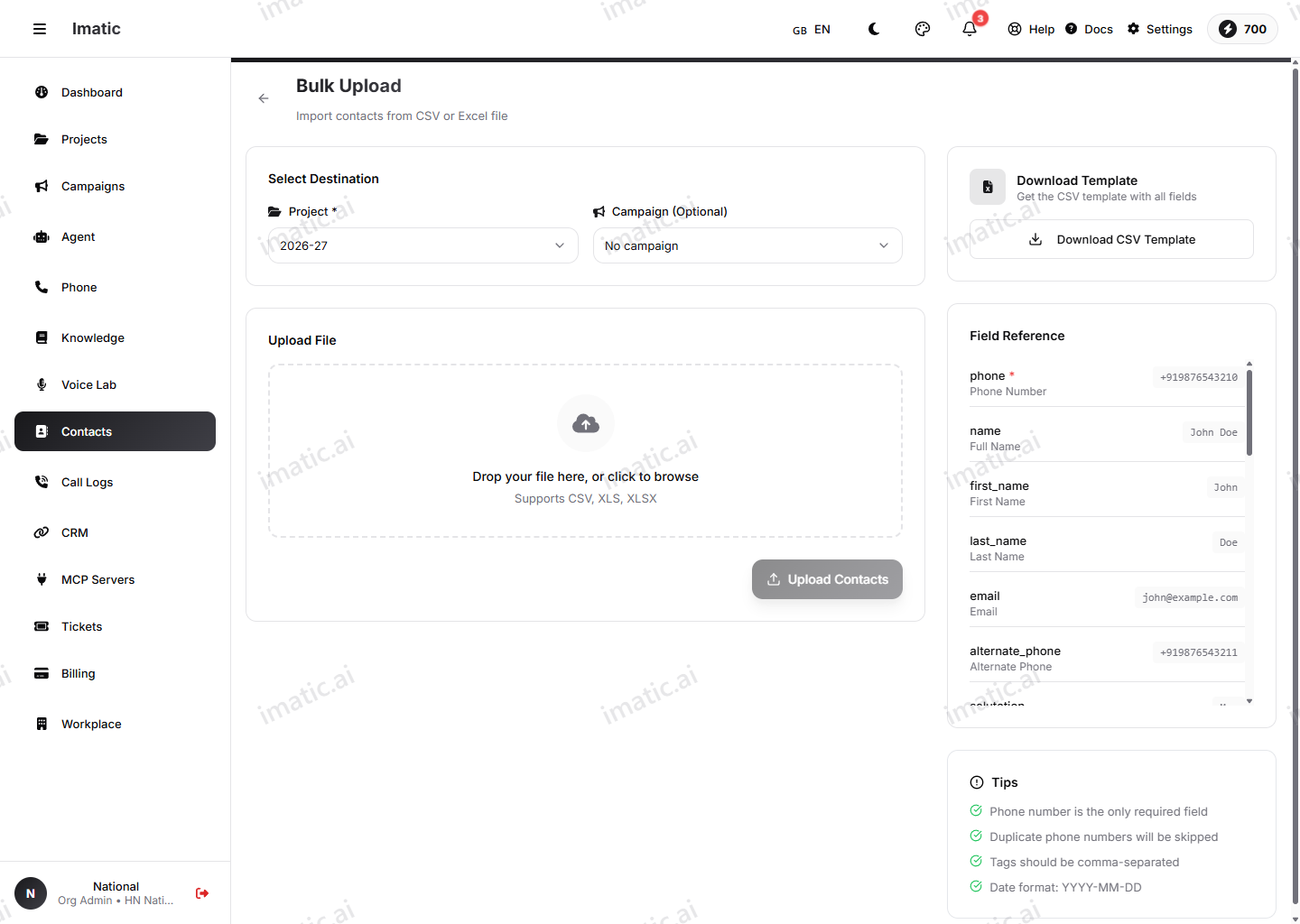
To import many contacts at once, open Bulk upload (/contacts/bulk-upload).
- Download the CSV template and fill in your contacts. The picker accepts
.csv,.xlsand.xlsx, but the importer reads CSV — save your file as CSV before uploading, since Excel workbooks may not import cleanly. - Upload your CSV. Columns are matched automatically by their headers — standard fields like name, phone and email are recognized under common header aliases, and any unrecognized columns are ignored. There is no manual column-mapping step.
- Review and confirm. The contacts are added to the project.
Keep one phone number per row and use a consistent country/format. Clean phone data is the single biggest factor in how many of your calls connect.
Bulk-call modal
Once you've selected contacts, the bulk-call modal lets you start calls to all of them with a chosen agent in one action — handy for quick outreach to a small, hand-picked set. For large lists on a schedule with pacing and retries, use a Smart Campaign instead.
Lead scoring
Lead scoring ranks contacts so you can prioritize the most promising ones. The portal works with two complementary signals:
-
Lead Score (a number, 0–100). This is a stored field on the contact, not something the portal calculates for you. You populate it by including a Lead Score column in the bulk upload template or by syncing it from a connected CRM, and the contacts list color-codes it into bands — 80+ (hot, green), 50–79 (warm, amber) and below 50 (cool, muted). It's sortable and filterable, and surfaces as the Score column in the Leads view.
-
Hot / Warm / Cold (an automatic rule-based label). Independently, the app derives a freshness label from each contact's own activity — no manual entry needed:
- 🔥 Hot — last contacted within 7 days and the last call result was "interested" or a "callback".
- ♨️ Warm — last contacted within 30 days, or the contact has both a phone and an email on file.
- ⚪ New — never contacted yet.
- 🧊 Cold — last contact was over 30 days ago (gone quiet).
This label drives the badge on a contact's activity panel, the "next best action" suggestion, and the bulk Call Hot & Warm shortcut, so your agents spend time where it pays off.
Custom fields
Beyond the standard name, phone and email, you can add custom fields to capture whatever your business tracks — account number, plan, region, renewal date, and so on. Custom fields are available to your agent during a call, so the conversation can be personalized.
Segment
Segment is a free-text label on each contact — for example "premium", "trade-show" or "renewals". It is a single field you fill in (by hand or during import), not a saved, targetable group. You can filter and sort the contacts list by segment to find a group quickly, but a Smart Campaign targets the whole project's contacts, not a segment. To call a hand-picked subset, filter the list and use the bulk-call modal.