Channels
Your agent doesn't have to live on the phone. The Channels tab connects the same agent to text-messaging surfaces — WhatsApp, Telegram, Facebook Messenger and an embeddable web chat widget — so a caller can also reach it by message. Each channel is configured per agent and turned on independently.
Open the agent builder at /agent/setup and select the Channels tab.
Channels are attached to a saved agent. If you open the tab on an agent that hasn't been saved yet, you'll see a notice to save the agent before configuring messaging channels, and the per-channel save buttons will tell you the same. Create and save the agent, then come back to wire up channels.
The channel overview
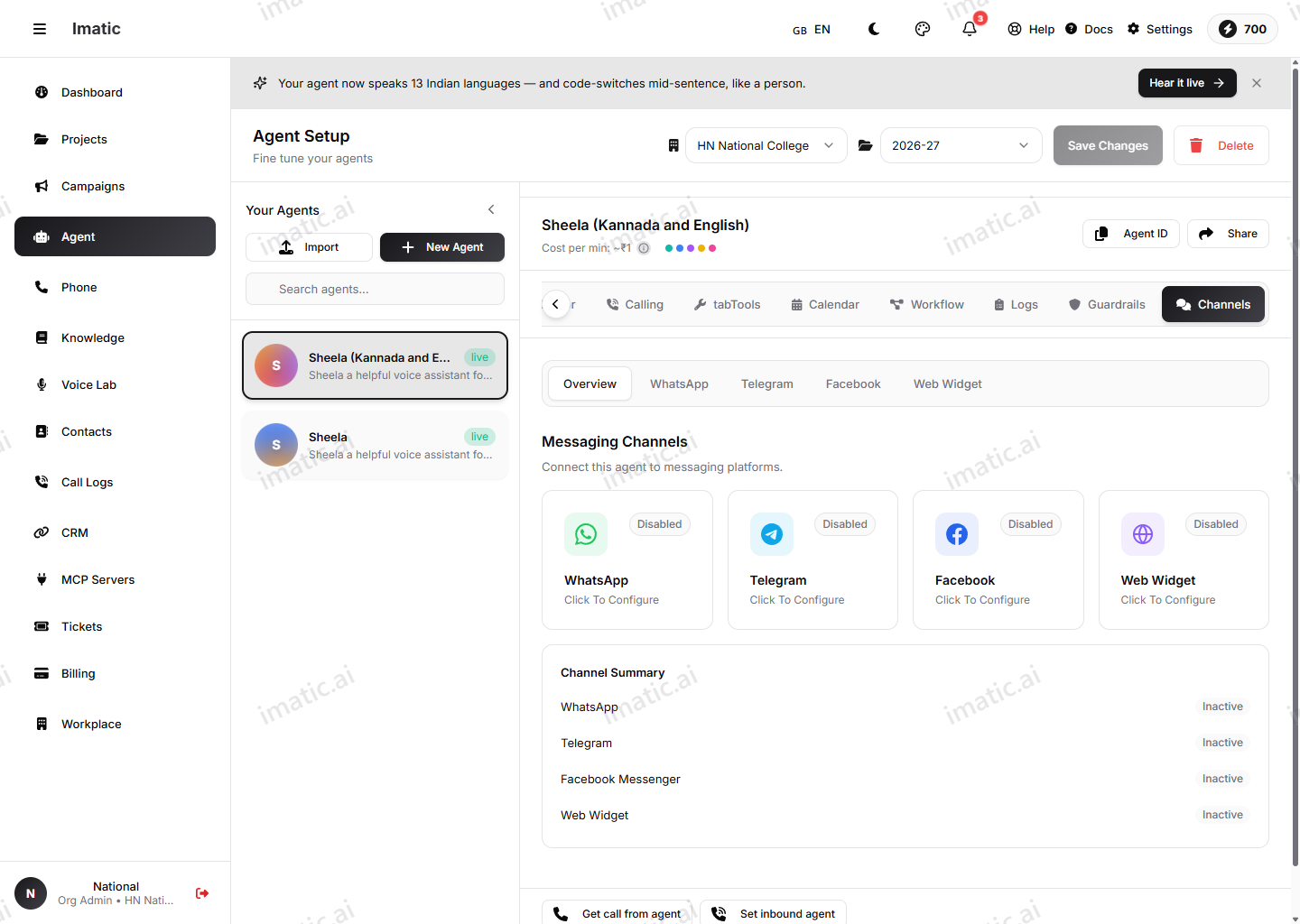
The tab opens on an Overview with one card per channel — WhatsApp, Telegram, Facebook and Web Widget — each showing whether it's Enabled or Disabled. Click a card (or use the sub-tabs along the top) to open that channel's settings. A Channel Summary at the bottom lists every channel with an Active / Inactive status at a glance.
Every channel screen starts with a single enable toggle. While a channel is off, its fields are dimmed and inactive — flip the toggle on, fill in the details, and Save that channel's settings.
WhatsApp
Connect a WhatsApp Business number so the agent can send and receive WhatsApp messages.
- Business credentials — Phone Number ID, Business Account ID, Access Token and App Secret (your Meta App Secret). These come from your Meta / WhatsApp Business setup.
- Webhook configuration — a read-only Webhook URL (
https://api.imatic.ai/webhooks/whatsapp) to copy into Meta's webhook settings, and a Verify Token you can type or Generate, then paste into Meta to confirm the webhook. - Message settings — a Greeting Message, and a Fallback Message that is sent when you're outside WhatsApp's 24-hour customer-service messaging window.
Save with Save WhatsApp Settings.
Telegram
Connect a Telegram bot so the agent can send and receive Telegram messages.
- Bot credentials — the Bot Token you get from @BotFather on Telegram, and a Webhook Secret (type or Generate) used to verify that incoming webhook calls really come from Telegram.
- Webhook setup — a read-only Webhook URL (
https://api.imatic.ai/webhooks/telegram) and a Register Webhook button. Registering tells Telegram to start delivering messages to this agent; the panel shows a clear Webhook Registered / Webhook Not Registered status. - Message settings — a Greeting Message.
Save your Telegram settings before registering the webhook. Registration runs against the saved channel configuration and needs a bot token in place — if you try to register first, the Portal will ask you to save and add the token.
Save with Save Telegram Settings.
Facebook Messenger
Connect a Facebook Page so the agent can send and receive Messenger messages.
- Page credentials — Page ID, Page Access Token and App Secret (your Meta App Secret).
- Webhook configuration — a read-only Webhook URL (
https://api.imatic.ai/webhooks/facebook) to copy into Meta's webhook settings, and a Verify Token (type or Generate) to paste into Meta.
Save with Save Facebook Settings.
Web widget
Embed a chat widget directly on your website so visitors can talk to the agent from any page.
- Appearance — a Widget Title (the bubble's label), a Position (bottom-right, bottom-left or bottom-center), a Primary Color (color picker or hex value), and a Theme (light, dark or auto).
- Security — Allowed Domains: add the domains the widget may load on. Leaving the list empty allows every domain, which is intended for development only — lock it to your real domains before going live.
- Embed code — once the agent is saved, the Portal generates a
<script>snippet keyed to your agent (it carries the agent code, color and theme). Copy it and paste it just before the closing</body>tag on your site. Until the agent is saved, this section prompts you to save first. - Preview — a live preview shows where the bubble sits and how your chosen color and title look.
Save with Save Widget Settings. The widget configuration is also stored on the agent itself, so it's kept alongside the rest of the agent's setup.
How channels relate to provider credentials
The credentials on this tab — WhatsApp/Facebook tokens, the Telegram bot token, allowed domains — belong to this agent's messaging channels and are entered here. They are separate from the org-level provider credentials in Settings, which power the agent's brain and voice (LLM, speech) and the built-in functions (CRM, SMS, calendar). Configure both: Settings for the shared providers, Channels for where this agent shows up.
Next steps
- Configure provider credentials in Settings for the agent's LLM, speech and integrations.
- Build or edit an agent before wiring up its channels.
- Set the language model and voice and audio that this agent uses across every channel.