Smart Campaigns
A Smart Campaign dials a project's contacts with one of your AI voice agents, on a schedule you set, and gives you a live console to allocate channels, start, pause and watch the calls as they happen. Use it for outbound work like reminders, surveys, lead qualification, renewals and follow-ups — the agent handles each conversation while the campaign manages pacing, retries and reporting.
Campaigns live under Campaigns (/campaigns). Each campaign belongs to a project, so set up your project and agent first.
Before you start
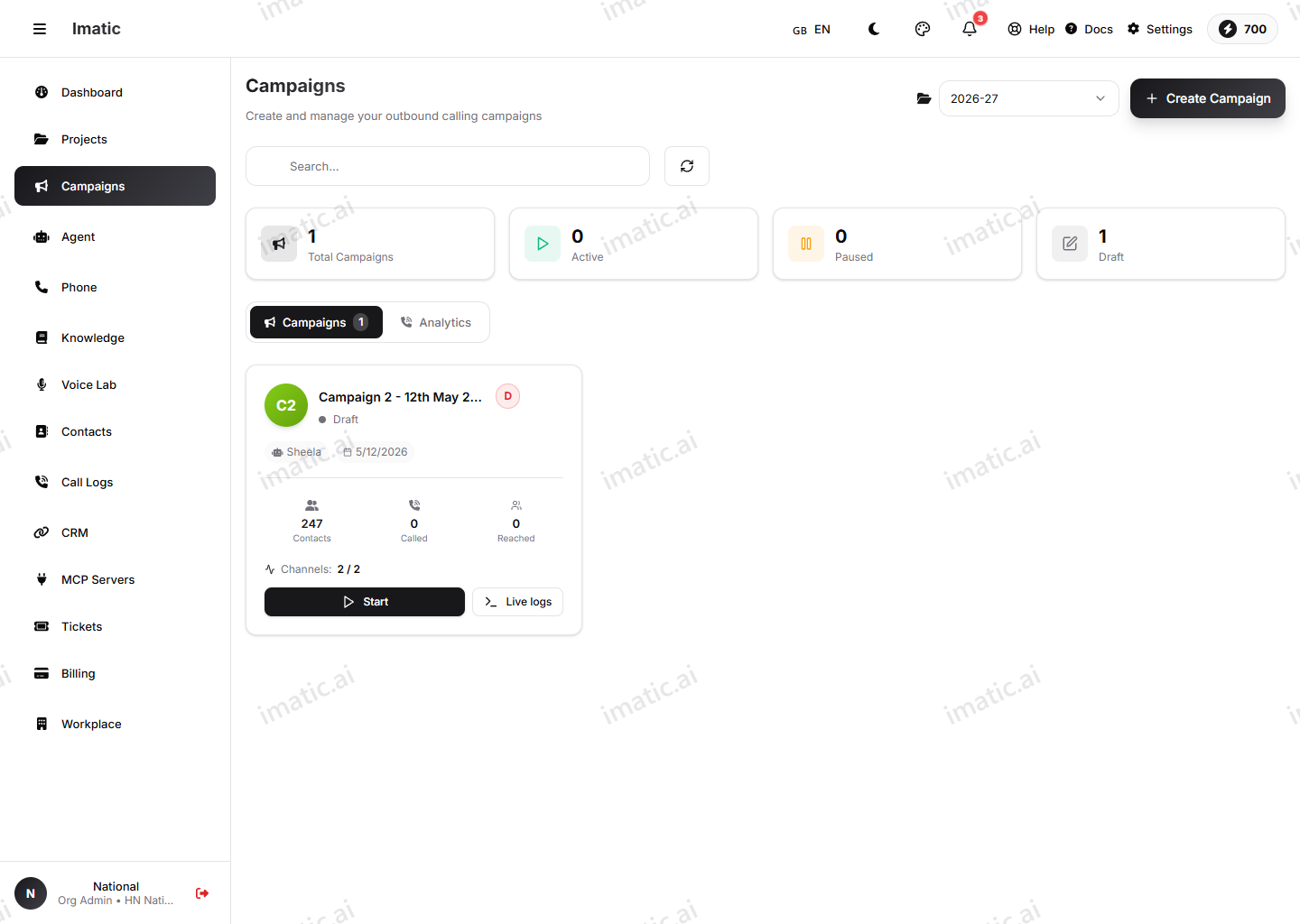
You'll need three things ready:
- An agent to do the talking. Build and test it on the agent builder so its greeting, prompt and end behavior are right before you dial real people.
- A project with contacts in it. A campaign dials the contacts of the project you point it at — add or import them under Contacts.
- A phone number to call from. Buy and assign one under Phone numbers.
Run a few test calls from the agent's voice test screen before launching a campaign. Fixing the prompt after you've dialed a thousand people is expensive.
Create a campaign
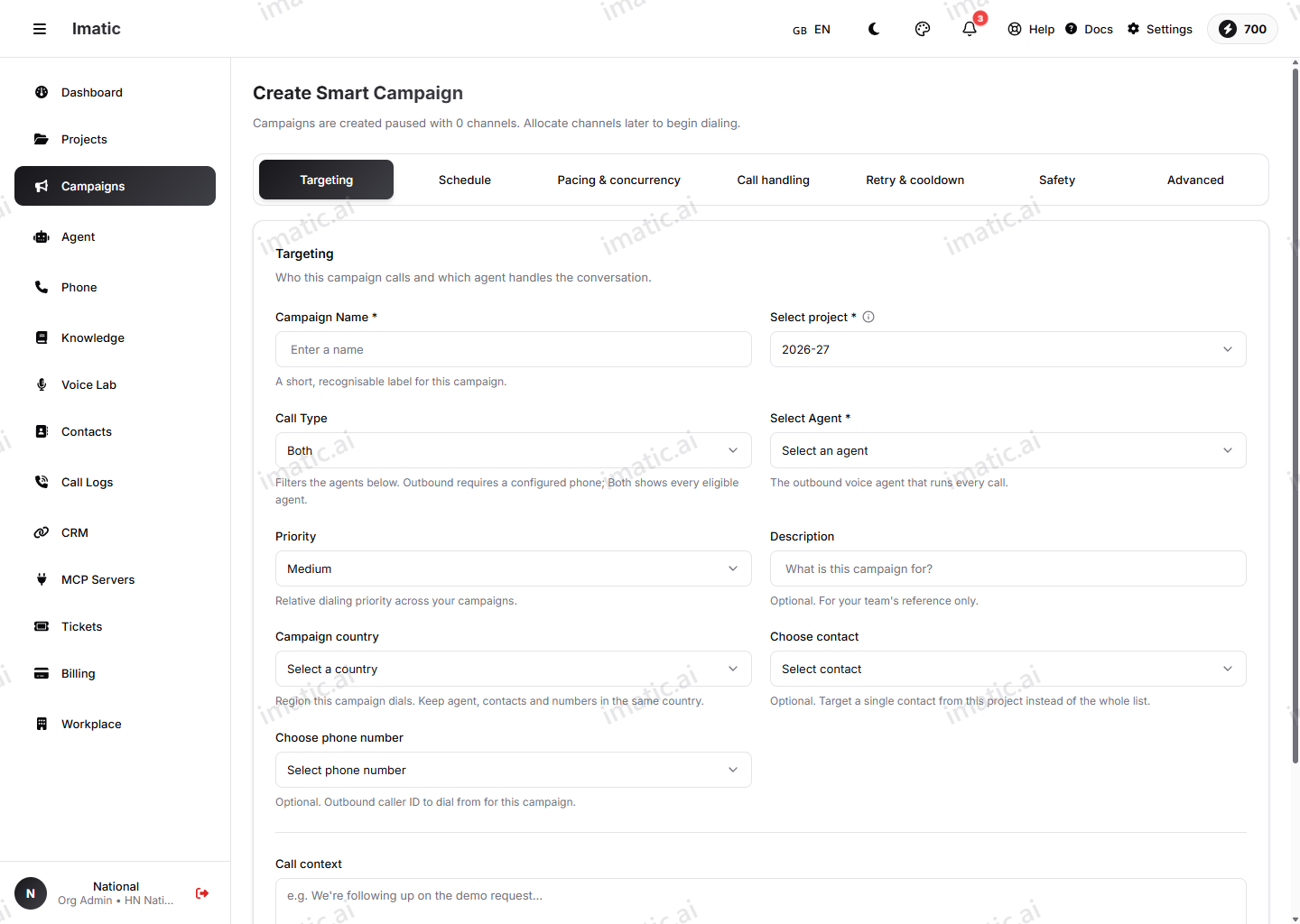
Open Campaigns and choose Create (/campaigns/smart/create). Creation is organized into seven tabs you fill in:
Targeting
Set the campaign's core identity and what it dials:
- Name (for example, "March renewal reminders"), project, call type, the agent that runs every call, a priority, an optional description, and the country.
- A campaign dials the chosen project's contacts — there is no list, segment or batch selector. You can optionally override targeting to a single contact (and a single phone number) instead of the whole project, and add free-text call context for the agent.
Schedule
Set when the campaign is allowed to dial. Calls are only placed inside the window you define here; outside it the campaign waits.
- Start date and start time — the campaign won't dial before this. Leave blank to start as soon as channels allow.
- End date — the campaign won't dial after this. Leave blank for no end. It must be on or after the start date.
- Call window start / end — the earliest and latest time of day a call may be placed (for example 09:00–18:00).
- Timezone — the window times are interpreted in this timezone (Asia/Kolkata, Asia/Dubai, Europe/London, America/New_York, and so on).
- Allowed days — pick which weekdays the campaign may dial (defaults to Mon–Fri).
- Recurring campaign — optionally re-run the campaign automatically on a daily, weekly, monthly or custom pattern.
Pacing
Control how fast and how many calls go out. Start from a preset — Conservative, Balanced or Aggressive — which sets spacing, daily limit and channels together, then fine-tune any field:
- Channels allocated — the number of concurrent call channels. This is the throttle that actually starts dialing: 0 channels = the campaign won't place any calls, and you can't exceed your organization's channel cap. (A new campaign is created with 0 channels; you raise this here or from the console.)
- Daily call limit — the maximum number of calls placed per day (for example ~400 fits a 5–6 hour window at 4 channels).
- Calls per minute — an upper bound on the placement rate. Carriers throttle aggressive bursts, so keep this sensible.
- Placement spacing — the minimum seconds between placing two calls (carriers throttle bursts faster than ~2/sec).
- Poll interval — how often the dialer checks for newly eligible contacts.
A live estimate at the bottom of the tab shows the approximate calls/hour your settings will achieve (and, when known, an ETA to clear the remaining eligible contacts).
Call handling
Set the per-call timeouts and duration limits that apply to every call in the run:
- Ring timeout — how many seconds to let a number ring before giving up and marking it unanswered.
- Max call duration — a hard cap on how long any single call may last. The maximum allowed is 1800 seconds (30 minutes).
Retry
Decide how persistently the campaign chases a contact and how long it waits between tries:
- Max dial attempts per contact — stop dialing a contact after this many tries.
- Wait between attempts — the minimum minutes before re-dialing the same contact.
- Cooldown — never re-call a number within this many hours of the last attempt, regardless of outcome.
- Not-picked cooldown — hours to wait before retrying a number that rang but wasn't answered (0 = retry immediately on the next run).
Safety & budget
Set the safety flags (see Safety controls below) and budget for the run.
Advanced
Optional extras for power users:
- Trigger type — how runs are kicked off: manual, scheduled, event or api.
- Holiday dates to skip — a comma-separated list of dates (
YYYY-MM-DD) the campaign should never dial on, such as public holidays. - A/B testing — split contacts across variants to compare scripts or agents. The variant configuration is preserved when you edit the campaign.
After you create it
When you save, the campaign is created paused, with zero channels allocated — nothing dials yet. To begin dialing you allocate channels to it from the console (see below).
Safety controls
The Safety & budget tab gives you guardrails for responsible dialing:
- Respect DNC registry — skip numbers on the do-not-call list.
- Business-hours guard — only dial within sensible hours.
- Circuit breaker — automatically halt the run if error/failure rates spike.
- Record calls — whether calls in this campaign are recorded.
- Skip recently completed — don't re-dial contacts you've already reached recently.
Campaign Console
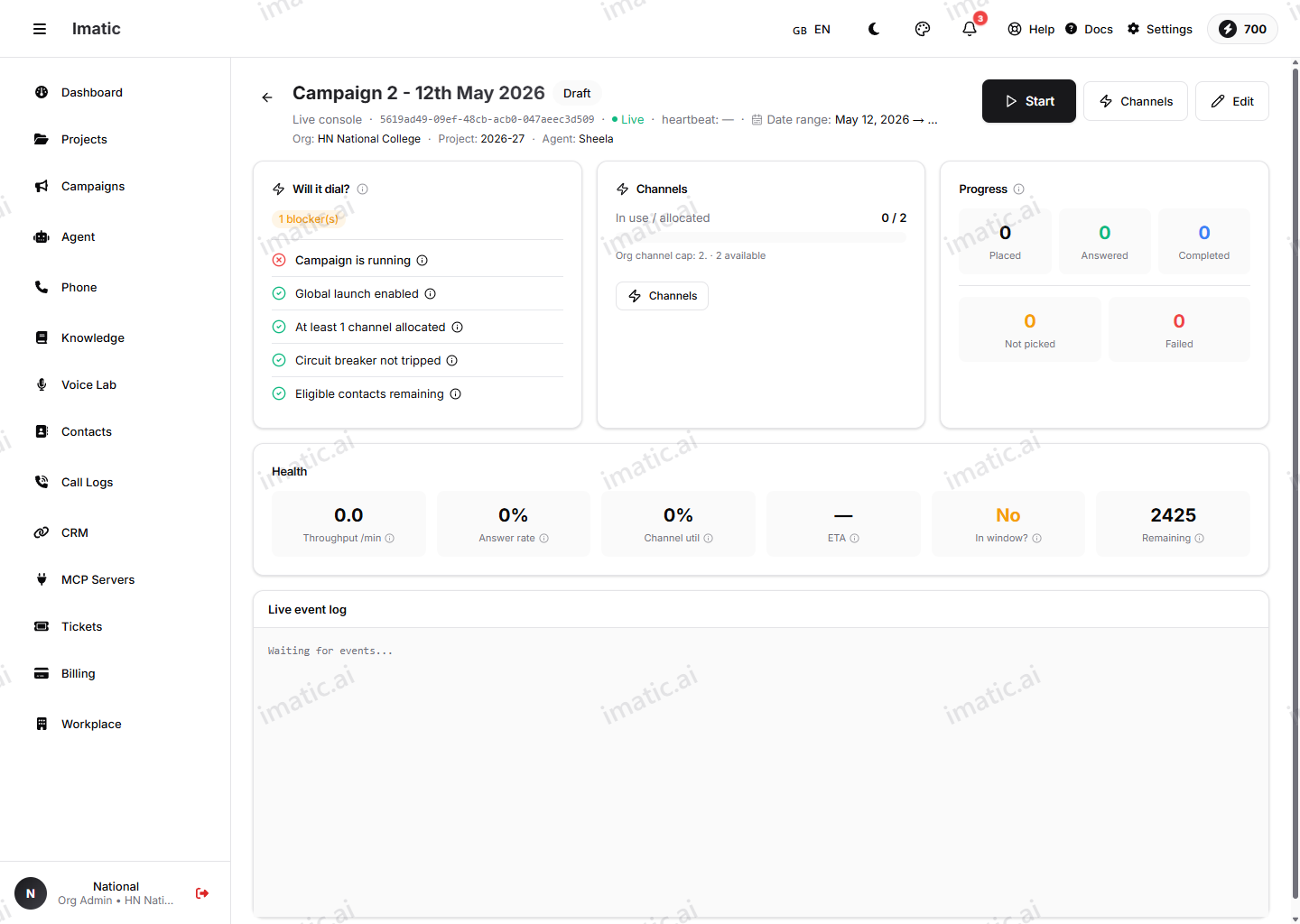
Every campaign has a console (/campaigns/smart/:code/console) — your control room for the run. Open a campaign from the list to reach it.
Allocate channels, start, pause, resume, stop
The console gives you full control over the run:
- Allocate channels — assign dialing channels to the campaign. A new campaign starts with zero channels, so this is the step that actually lets it begin placing calls.
- Start — begin dialing within the schedule.
- Pause — hold dialing without ending the campaign; in-progress calls finish.
- Resume — continue a paused campaign where it left off.
- Stop — end the campaign. Use this when the run is complete or you need to halt it.
If the circuit breaker tripped, the console also lets you reset it before resuming.
A campaign respects its schedule even while started. If you start it outside the allowed calling hours, it waits until the next permitted window before placing calls.
Live metrics
While a campaign runs, the console updates in real time so you can see how the run is going without refreshing. A readiness checklist confirms the campaign is set up to dial (agent, number, contacts and channels in place), a channel-allocation gauge shows how many of your allocated channels are currently in use, and live counters track calls in progress and contacts completed.
Call outcomes
The console breaks down how each call is landing — answered, no-answer, busy, failed and completed — so you can tell at a glance whether the problem is reachability or the conversation itself, and act on it mid-run rather than waiting for the final report.
Event log
A live event log streams what the dialer is doing — calls placed, outcomes recorded, pauses, resumes, retries and any errors — giving you a running, timestamped trace of the run as it happens.
Health
The health view flags problems with the run — pacing, delivery and error conditions — so you can spot a stalled or misbehaving campaign early instead of discovering it in the final report.
Analytics
Campaign analytics live on the Campaigns overview → Analytics tab and summarize results across the whole run. A funnel shows where contacts move and drop off — Total Contacts → Scheduled → Dialing → Connected — so you can tell whether contacts aren't being scheduled, aren't being dialed, or are being dialed but not connecting. A calling-time heatmap plots answer rate and call count by day and hour, so you can learn the windows when your audience actually picks up and tighten the next campaign's schedule to those hours. Use analytics to compare campaigns, prove results, and plan the next batch.
For per-call detail — recordings, transcripts, AI summaries and sentiment — open any call from Call logs.