Call logs & analytics
Every call your agents make or receive is recorded here as a call record. Open a call to hear the recording, read the transcript, see the AI's summary of what happened, and check the caller's sentiment and intent. Across all calls, the analytics views show you the funnel, the best times to call, and trends over time.
Open Call logs (/call-logs). Records are scoped to your project.
Call records
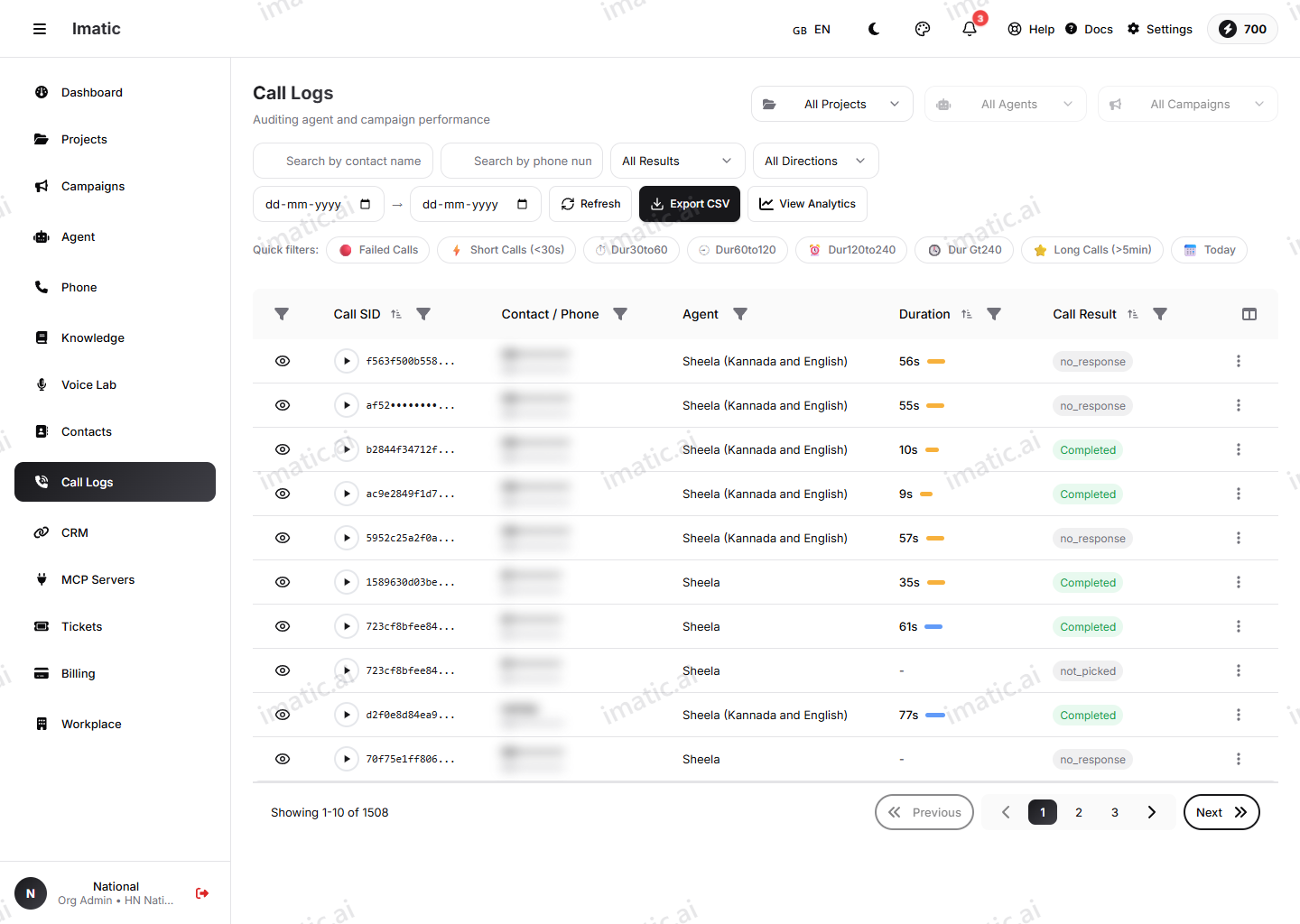
The call log is the list of every call, with the details you need to scan quickly:
- Caller and callee — who was on each side.
- Agent — which AI agent handled the call.
- Duration — how long the call lasted.
- Call Result — the outcome of the call.
Open any record to see the full call detail described below.
Filtering
Use the filters to narrow the list — by agent, status, date range and the other fields on each record — so you can find a specific call or pull up a group of calls (for example, all failed calls from yesterday) without scrolling.
Inside a call record
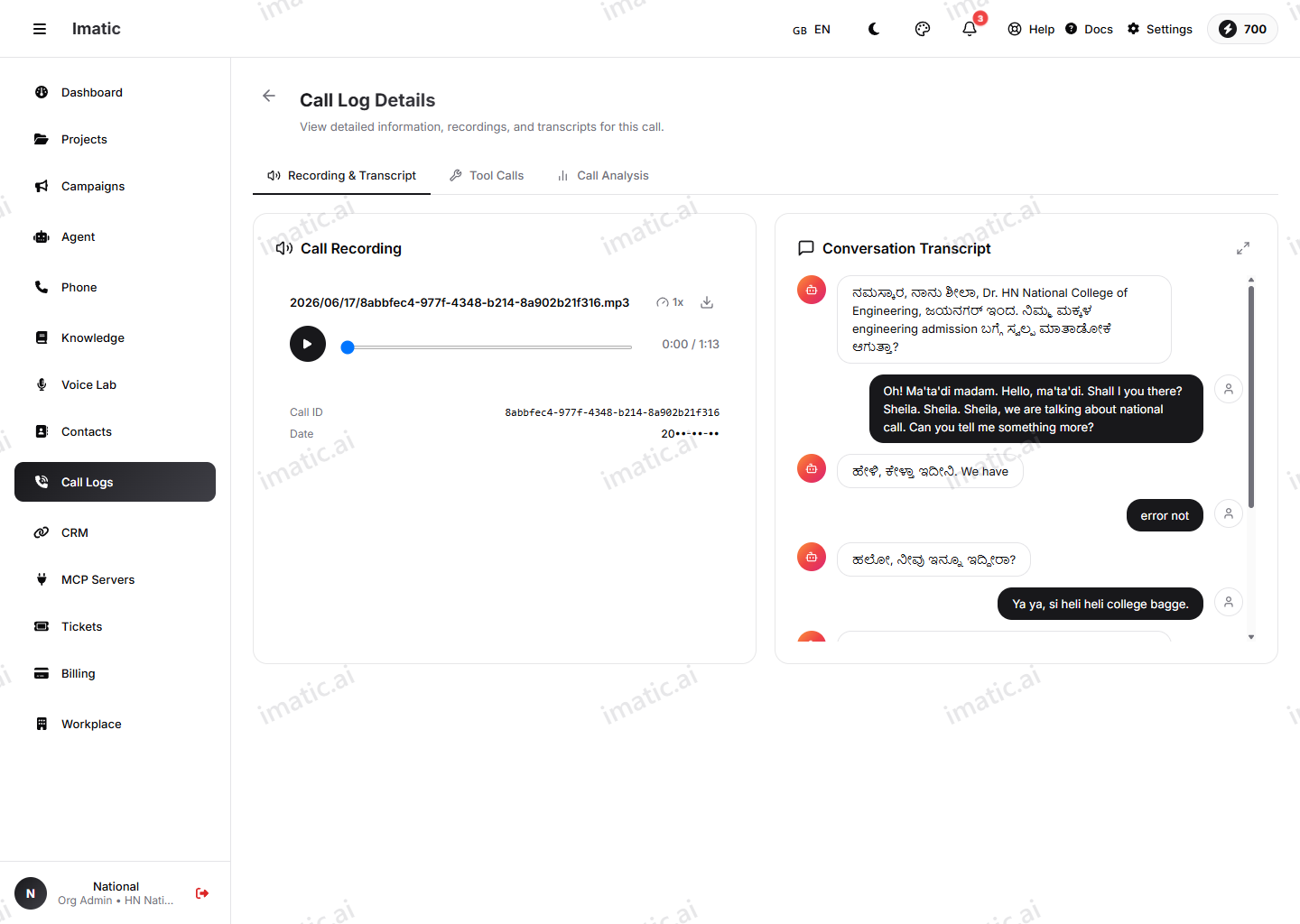
Recording playback
Play back the call audio directly in the record. Recording is governed by your compliance settings, so whether a call is recorded depends on how your organization has configured recording and retention.
Transcript
Read the full transcript of the conversation, turn by turn. Transcripts are produced by speech-to-text and reflect any settings you've enabled on the agent, such as speaker labeling (diarization) and PII redaction. See Voice & audio for those controls.
AI summary
Each call gets an AI-generated summary — a short, readable recap of what was said and what was decided — so you can understand a call without listening to the whole thing.
Sentiment and intent
When enabled, the record surfaces the caller's sentiment (how the conversation felt) and intent (what they wanted), so you can spot unhappy callers or high-value intents quickly and route your follow-up accordingly.
Sentiment analysis and intent detection are per-agent toggles and are off by default. Turn them on under the agent's Guardrails (post-call analysis) — or on the Behavior (Engine) tab for sentiment — to have them appear on each call record.
Call Analytics
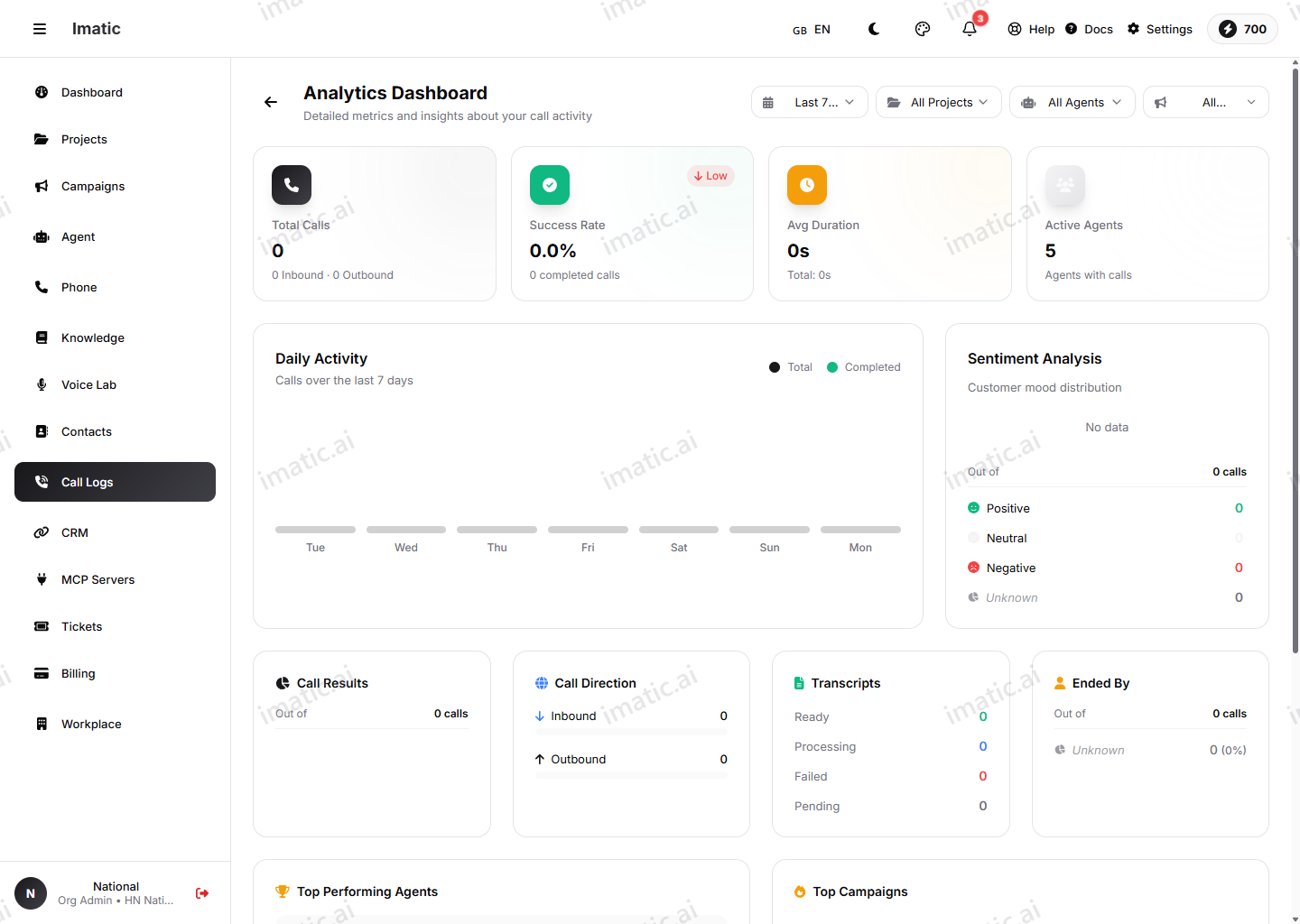
The Call Analytics view (/call-analytics) aggregates across all your calls to show the bigger picture:
- Funnel — how calls progress through their stages, so you can see where they drop off.
- Heatmap — answer and outcome rates by day and hour, so you learn the best times to reach people.
- Trends — how your call volume and outcomes move over time.
For analytics scoped to a single outbound run, see the console and analytics inside each Smart Campaign.
Callbacks
Calls that end with a request to be called back feed the Callbacks queue, so promised follow-ups don't get lost. You can also work callbacks from Contacts.