Language model (LLM)
The LLM tab (labeled Model in the agent builder) decides how your agent thinks and how its voice pipeline is wired. It controls the voice pipeline mode (how speech-to-text, the language model and text-to-speech fit together), which LLM provider and model drive the conversation, the generation parameters, a fallback model, and the RAG / knowledge-base linkage. Set this in the agent builder at /agent/setup.
Voice pipeline mode
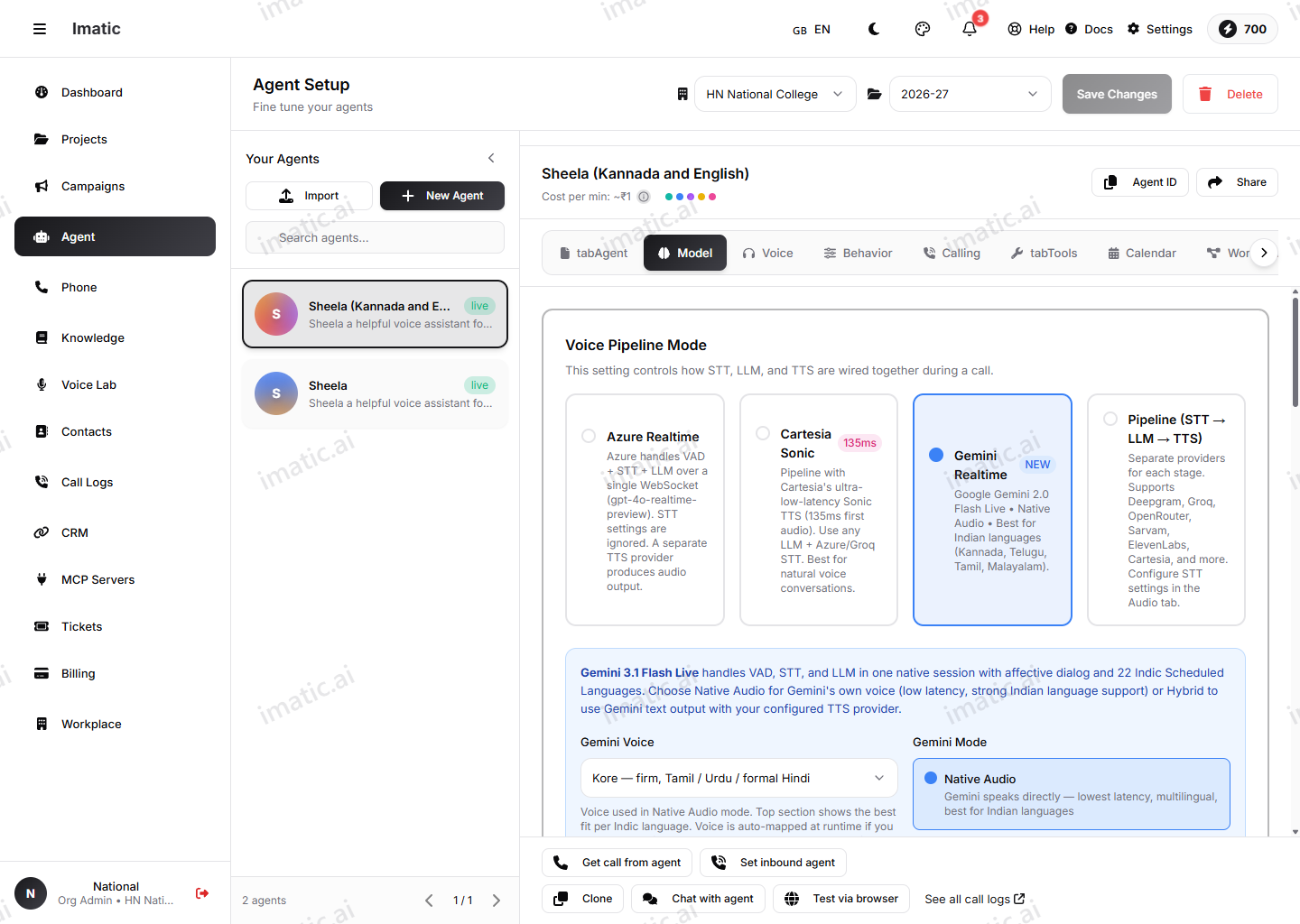
This is the most important setting on the tab — it controls how STT, the LLM and TTS are wired together during a call. Choose one of four modes:
- Azure Realtime (default) — Azure handles voice-activity detection, speech-to-text and the LLM over a single WebSocket using a
gpt-4o-realtime-previewdeployment. STT settings on the Voice (Audio) tab are ignored; a separate TTS provider produces the audio. - Cartesia Sonic — a pipeline that uses Cartesia's ultra-low-latency Sonic TTS, with any LLM and an Azure/Groq STT.
- Gemini Realtime — Google Gemini Live handles VAD, STT and the LLM natively, with strong support for Indian languages. It can speak with its own voice (Native Audio) or output text for your configured TTS (Hybrid).
- Pipeline (STT → LLM → TTS) — separate providers for each stage, configured independently. Use this when you want full control over the transcriber, model and voice.
Each realtime mode requires a specific family of models, and the model is passed straight to the realtime provider — an incompatible value fails at call time. When you switch modes the builder auto-sets a compatible model, and on save it reconciles the model to the mode. In particular, a plain chat model like gpt-4 is not valid for the default Azure Realtime mode and is rewritten on save; pick a realtime deployment for realtime modes, and a chat-completion model for Pipeline / Cartesia Sonic.
Choose the provider and model
Outside the fully-managed realtime modes, you pick the LLM provider and then a model for that provider. The provider list shows only the providers your organization has enabled credentials for (configured in Settings). Depending on what's enabled, that can include Azure OpenAI, Google Gemini, Groq, OpenRouter and Sarvam.
- For Azure, the model options come from your configured deployments (each credential is one deployment).
- For single-key providers, the model list comes from the platform's model catalog.
Pick the model that fits the job: higher-capability models reason better on complex calls, while lighter models respond faster and cost less per call. For most calling agents, latency matters as much as raw quality.
Model parameters
The Model Parameters section controls generation:
- Tokens — caps how much the model generates per turn. Keep this modest so the agent doesn't ramble on a phone call.
- Temperature — how varied the replies are. Low for scripted, compliance-sensitive calls; higher for conversational outreach.
- Top P — nucleus-sampling cutoff, an alternative way to control variety.
- Frequency penalty and presence penalty — discourage repetition and encourage the model to introduce new topics.
Advanced settings
The Advanced Settings section adds operational controls:
- Timeout (ms) — how long to wait for the model before giving up on a turn.
- Retry count and retry delay (ms) — how the agent retries a failed request.
- Response format — Text or JSON.
- Stream enabled — stream tokens as they're generated (on by default) for lower perceived latency.
- JSON mode — force structured JSON output.
- Cost tracking — record token spend for this agent.
You can also supply extra provider parameters as raw JSON under Custom Parameters.
Fallback model
Set a fallback provider and model so calls keep working if the primary is unavailable. If the primary can't respond, the agent uses the fallback instead of dropping the conversation — the simplest way to make an agent resilient.
Knowledge base & RAG
Retrieval-augmented generation is configured here, on the LLM tab, in the Add Knowledge Base section. Turn on RAG Enabled, select one or more knowledge bases, and tune RAG Top K (how many passages to retrieve) and the similarity threshold (how closely a passage must match). See Knowledge & RAG for how to tune these and how to build a knowledge base first.
Tracking usage and cost
Model usage consumes credits from your organization's prepaid balance. To see consumption and spend across your agents, use Billing — the Overview shows plan and usage, and the Wallet shows your prepaid credit, top-ups and history. Choosing efficient models and sensible token limits is the most direct way to control cost.