Publish & share
Publishing turns your draft into a live form people can fill out, and gives you the link, QR code, and embed code to share it. This page covers the publish flow and every way to get your form in front of an audience.
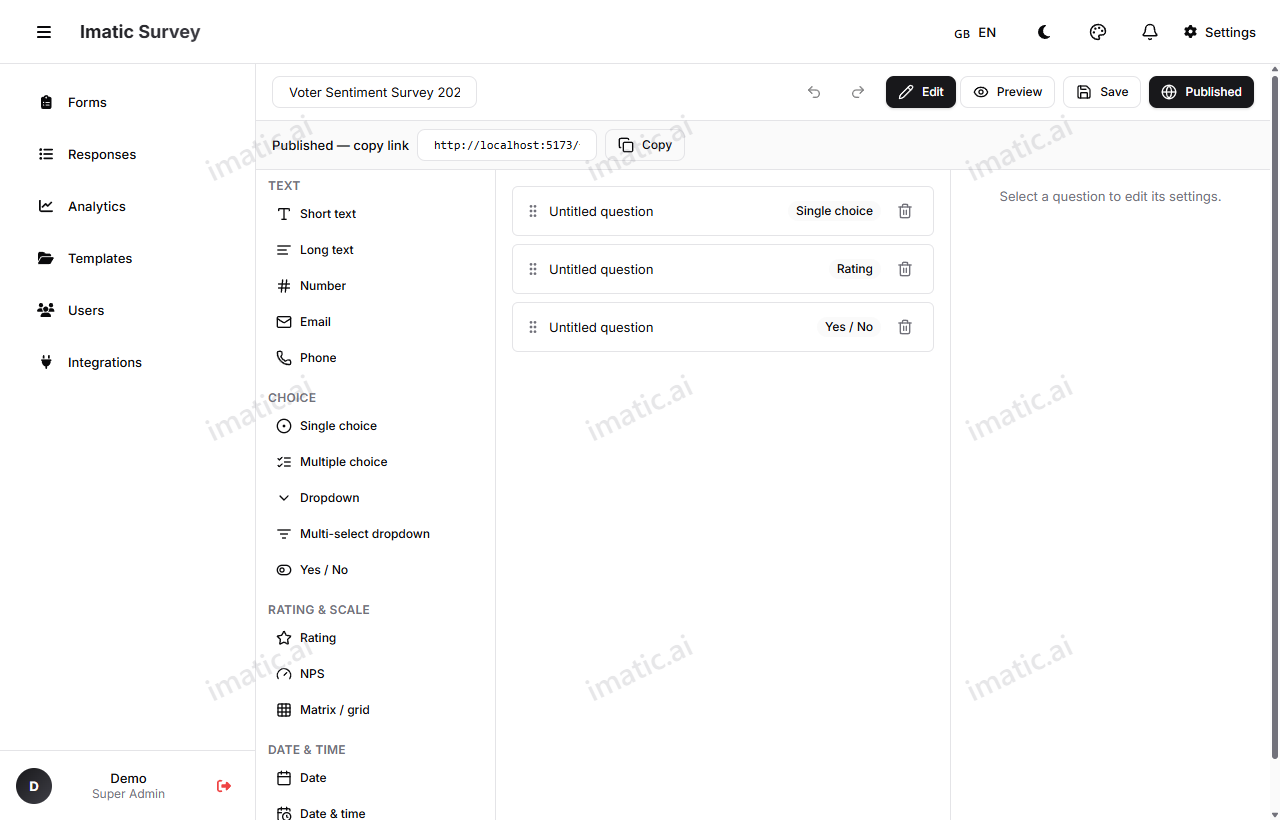
Publish a form
- In the builder, choose Save to save your latest changes.
- Choose Publish.
- Your form's schema is validated, and if it passes, the form goes live.
Publishing creates one published version of the form. That published version is what respondents see — separate from the draft you keep editing.
Publishing checks your form's structure first. If something is incomplete or inconsistent, fix the flagged issue and publish again. This guard keeps broken forms from going live.
How versioning protects your responses
Each published version is immutable — once it's live and collecting responses, that version doesn't change underneath people. When you edit the draft and publish again, you create a new version. This means your existing responses always line up with the exact form they were answered on, and there's a data-loss guard to stop edits from quietly invalidating responses you've already collected.
Share your form
Open the Share dialog to reach your audience however suits them:
- Copy link — your form's public address,
/f/:code. Paste it anywhere. - QR code — a scannable code for posters, slides, and print.
- Preview — open the live form to check it before you send it out.
- Social share — share to social platforms.
- Embed — drop the form into your own website (below).
Embed on your website
Two embed options let you put the form directly on your own pages:
- iframe — paste an
<iframe>snippet to display the form inline. - embed.js — use the embed script for a more integrated placement.
Either way, respondents fill out your form without leaving your site.
Prefill fields from the URL
You can pass values into a form through the share link so fields arrive already filled. Add URL prefill parameters to the link to set starting answers — handy when you already know something about the recipient (like a campaign source or a customer ID) and don't want to ask for it again.
Social link previews
When your /f/:code link is shared on social platforms and chat apps, it carries social (og:) tags so it unfurls into a proper preview with a title and description, instead of a bare URL. Your form looks intentional wherever it's posted.