The respondent experience
This is the form from your audience's side of the screen. When you share your /f/:code link, anyone can open and fill it out — no account needed. Here's what they see and how it behaves, so you know exactly what you're sending people into.
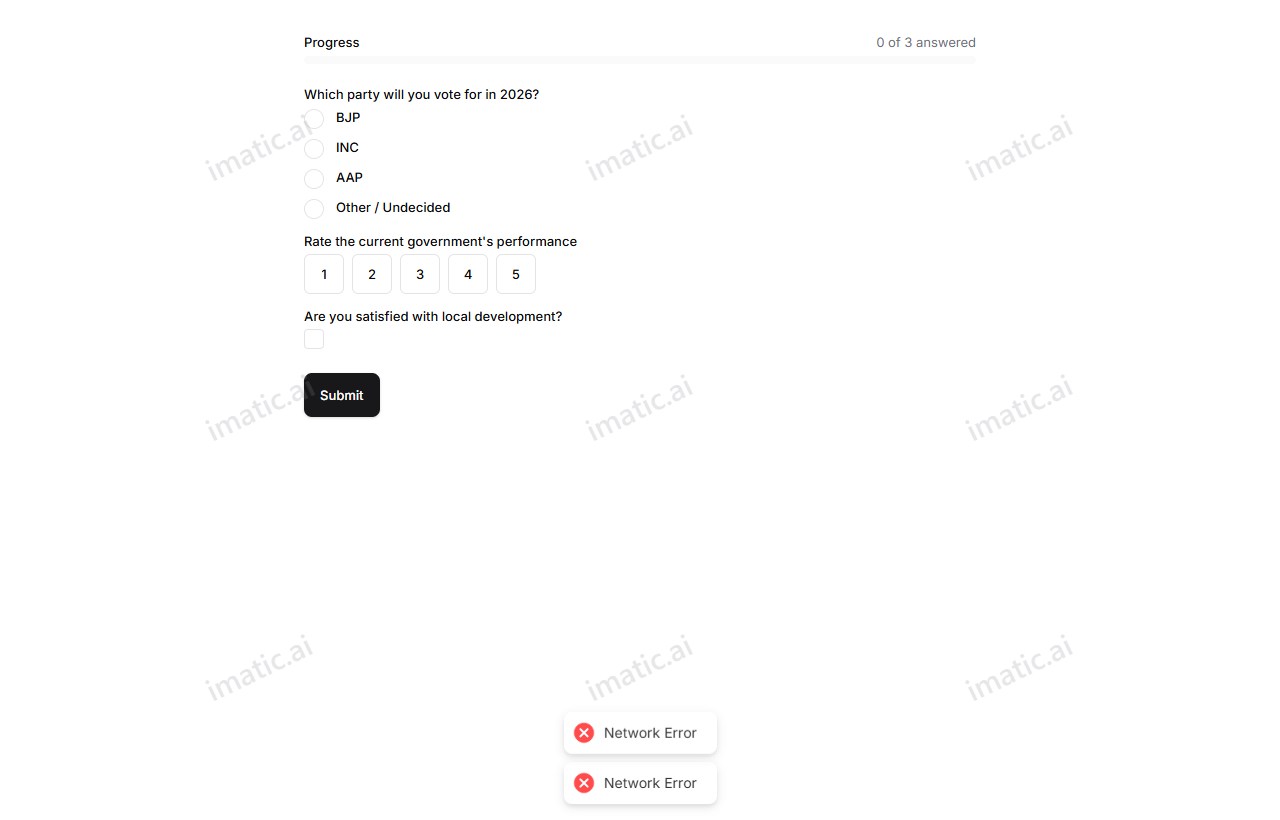
Classic or conversational
Your form renders in the layout you chose in Form Settings:
- Classic — all questions on the page, scrolling top to bottom. Familiar and fast for shorter forms.
- Conversational — one question at a time, Typeform-style, with a guided flow that feels like a chat. Great for engagement on longer forms.
Either way the form is full-bleed and responsive, so it looks right on phones, tablets, and desktops.
An intro cover screen
Forms can open with a cover screen that introduces what the form is about before the first question. It sets context and expectations so respondents know what they're getting into.
Smart, adaptive questions
The form respects all the logic you built:
- Conditional visibility shows and hides questions based on earlier answers, so people only see what's relevant.
- Calculations compute values from answers as people go.
- Each field type renders with the right input — a date picker, a star rating, a signature pad, and so on.
Inline validation and progress
Respondents get immediate feedback. Inline validation flags a missing required answer or an invalid entry (like a malformed email) right where it happens, so problems are fixed before submitting. A progress bar shows how far along they are, which keeps people moving through longer or multi-page forms.
Spam protection
Public forms support configurable spam protection — optional CAPTCHA, plus server-side rate and fraud checks that block floods of automated submissions. This keeps your response data clean without adding friction for genuine respondents.
Reliable submission
When someone submits, the form records their response atomically and exactly once — so a double-tap or a flaky connection won't create duplicate entries or lose an answer. People can trust that "Submit" means submitted.
Confirmation
After submitting, the same /f/:code page swaps in a confirmation screen in place — the URL doesn't change. It shows a thank-you message (you can set a custom one in Form Settings), and for scored forms it can display their score and band (see scoring).