Survey overview
imatic Survey is a single place to build forms and surveys, share them, collect responses on any device, and see what people said. You write the questions (or let AI draft them), publish a link, and the answers flow into charts and tables you can export — with a public live-results page for polls that updates in real time. No code, no spreadsheets to wrangle.
Here's what you can build and where each feature lives — so you can jump straight to the page you need.
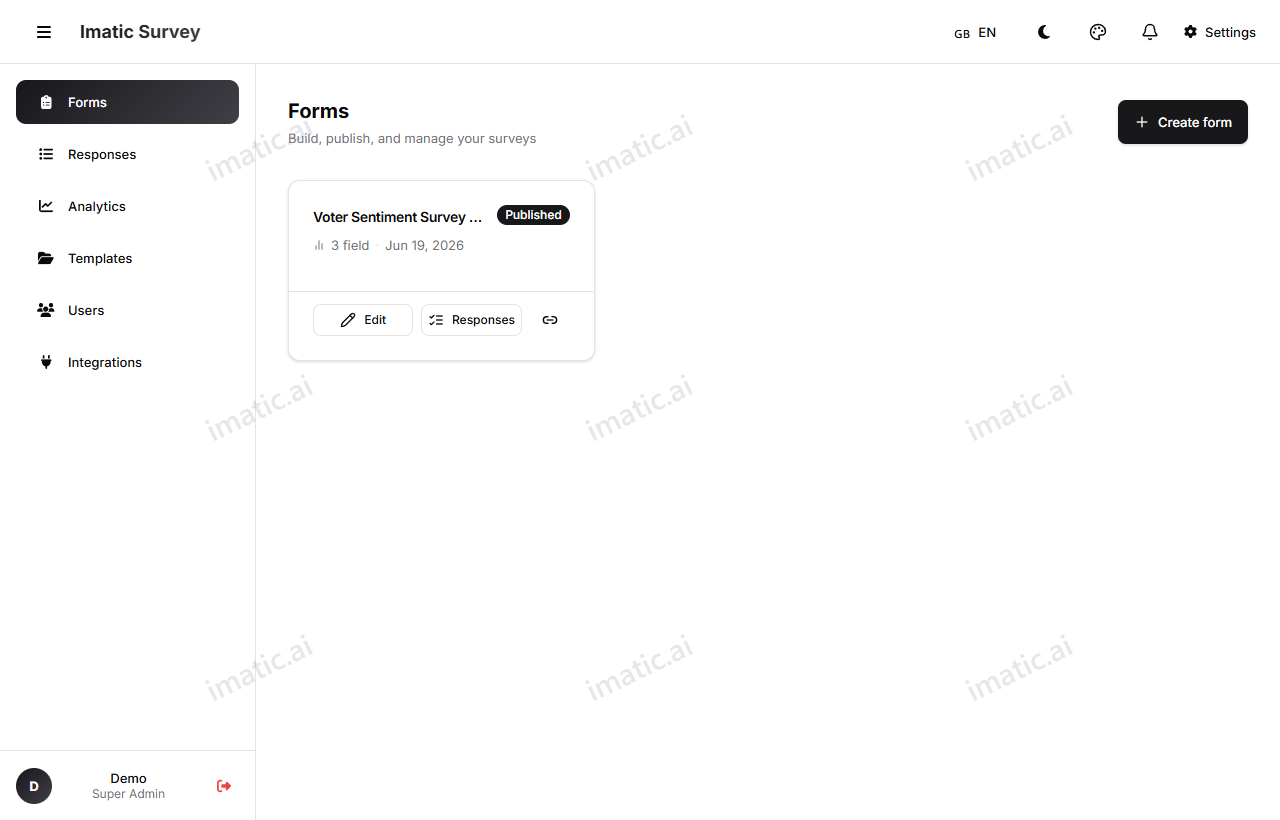
What you can do
- Build visually. Drag fields onto a canvas in the form builder and edit each one in the Inspector. 26 field types cover everything from short text to ratings, matrices, image choice, file uploads, and signatures.
- Start with AI or a template. Describe your form in plain language and let Create with AI draft the questions, or pick from dozens of ready-made templates.
- Add logic. Show or hide questions based on earlier answers, route people down different paths, pipe answers into later questions, and score quizzes — all in Logic & scoring.
- Publish and share. Publish a form to get a share link, QR code, or embed code, and prefill fields from the URL.
- Collect responses anywhere. Your public form works on phones, tablets, and desktops, with inline validation, a progress bar, and spam protection.
- Analyze your results. Read a response summary with charts and metrics, dig into individual answers, export to CSV or Excel, or open the deeper analytics with distributions and cross-tabs.
How a form comes together
- Create a form from scratch, a template, or an AI prompt.
- Build it in the three-column builder — add fields, set options, add logic.
- Preview it as your respondents will see it, in classic or conversational layout.
- Publish it to lock in a version and get your share link.
- Share the link, QR code, or embed wherever your audience is.
- Watch responses arrive and analyze them as they come in.
New here?
Start by creating your account, then try Create with AI or a template to get a working form in under a minute.
Key terms
A few words you'll see throughout these docs:
- Form / Survey — the set of questions you build.
- Draft / Published — a form is a Draft until you Publish it; publishing creates an immutable Form Version.
- Field — a single question or content block on the canvas.
- Inspector — the right-hand panel where you edit the selected field.
- Respondent — a person filling out your form. Their submission is a Response.
- Score band — a labeled range (like "Pass" or "High") for scored forms and quizzes.