Field types
Fields are the building blocks of your form. imatic Survey gives you 26 of them, grouped by what they collect. This page walks through each group and the per-field options you'll find in the Inspector.
Drag any field from the Palette onto the Canvas, then select it to edit its settings.
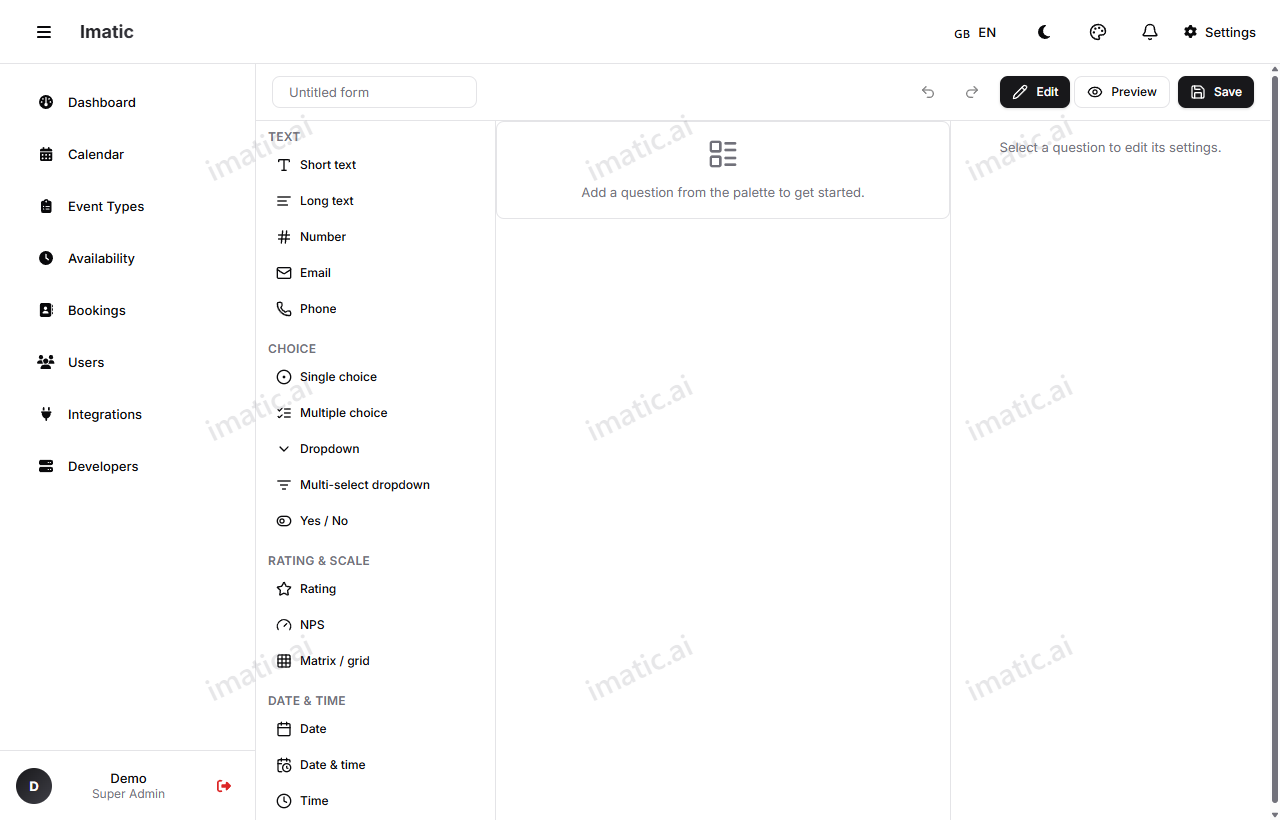
Text fields
For free-form written answers.
- Text — a single line, for short answers like a name or a city.
- Long text — a multi-line box, for comments, feedback, and longer replies.
- Email — a single line that checks the answer looks like an email address.
- Phone — a single line for a phone number.
- Number — for numeric answers, with optional minimum and maximum limits.
Choice fields
For picking from a set of options.
- Single select — choose exactly one option (radio buttons).
- Multi select — choose any number of options (checkboxes).
- Dropdown — choose one option from a dropdown list, handy for long lists.
- Multi dropdown — choose several options from a dropdown.
- Image choice — a carousel of images respondents pick from, instead of plain text options.
- Ranking — drag options into order of preference.
Choice fields support option shuffling (randomize the order to reduce bias) and an "Other" write-in so respondents can add an answer you didn't list.
Rating and scale fields
For measuring sentiment or strength of opinion.
- Rating — a star or point rating.
- NPS — a 0–10 Net Promoter Score scale.
- Slider — drag a handle along a scale to pick a value.
Grid and cascading fields
For structured, multi-part answers.
- Matrix — a grid of rows and columns, so respondents rate several items against the same scale in one compact question.
- Multi-level — cascading dropdowns where the second choice depends on the first (for example, Country then State then City).
Date and time fields
- Date — pick a calendar date.
- Date & time — pick a date and a time together.
- Time — pick a time of day.
Upload, media, and signature fields
- File — let respondents upload a file or attachment.
- Media AI recognition — an image/media upload field: respondents upload an image or media file. (AI recognition of the upload's contents is coming soon.)
- Signature — capture a drawn signature.
Location fields
- Location — capture a place or map point.
Special and content fields
- Boolean — a simple yes/no or true/false toggle.
- Consent — a consent checkbox, useful for GDPR-style agreement before submitting.
- HTML — a content block for instructions, headings, or rich text. It's not a question; it presents information.
Per-field options
Most fields share a common set of options in the Inspector. Use them to shape how each question looks and behaves:
- Label and description — the question text and optional helper text, each translatable per locale.
- Required — respondents must answer before they can submit.
- Shuffle options — randomize option order on choice fields.
- "Other" write-in — add a free-text option to choice fields.
- Conditional visibility (
visibleIf) — show the field only when an earlier answer matches a rule. - Conditional required (
requiredIf) — make the field required only under certain conditions. - Score value — points this answer contributes to a scored form or quiz.
- Validation rules — extra checks such as min/max for numbers or allowed formats.
One idea per field. If a question has two parts, split it into two fields — your charts and exports will be far cleaner.