Create with AI
Don't want to start from a blank canvas? Describe the form you need in plain language and AI drafts a complete set of questions for you. You stay in control — every generated question lands on the canvas where you can edit, reorder, or delete it.
Generate a form from a prompt
- In the builder, open the Create with AI dialog (look for the sparkles icon).
- Type what you want in the prompt box — describe the topic, your audience, and the kinds of questions you want.
- Submit the prompt.
- The generated questions are added to your canvas, ready to refine.
A good prompt is specific. Instead of "customer survey", try something like: "A short post-purchase survey for an online shoe store, with an NPS question, a rating for delivery speed, and an open comment box for suggestions."
You can write up to 4,000 characters, so spell out the sections, tone, and question types you have in mind. The more context you give, the closer the draft. AI generation caps a draft at 30 questions, each with up to 30 options — plenty for a focused form.
Refine the draft
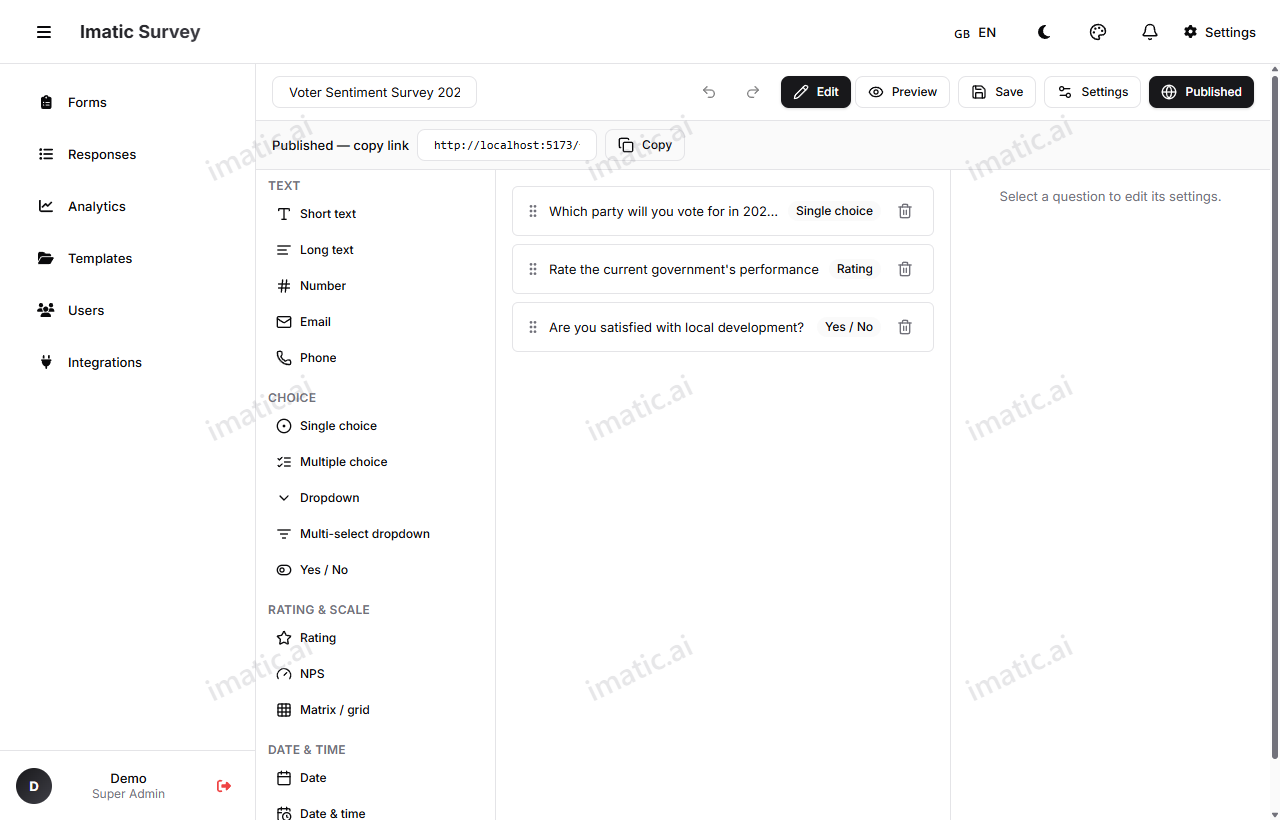
The generated questions aren't locked — they're a starting point. Once they're on the canvas you can:
- Edit any question's wording in the Inspector.
- Change field types, add options, or mark fields required.
- Reorder or remove questions.
- Add logic, piping, or scoring.
Treat the AI output as a first draft from a helpful assistant — quick to produce, yours to polish.
If AI is unavailable
If the AI service can't be reached, you won't be left empty-handed. The dialog adds a sensible starter set of questions so you still have something to build on. You can then edit it like any other form, or try generating again later.