Event types
An event type is one kind of meeting you offer — a 30-minute intro call, a 60-minute strategy session, a quick 15-minute check-in. Each one gets its own settings and its own booking link, so people book exactly the meeting you intend.
You manage them under Event types in your dashboard. Create a new one with New, then open any event type to edit it.
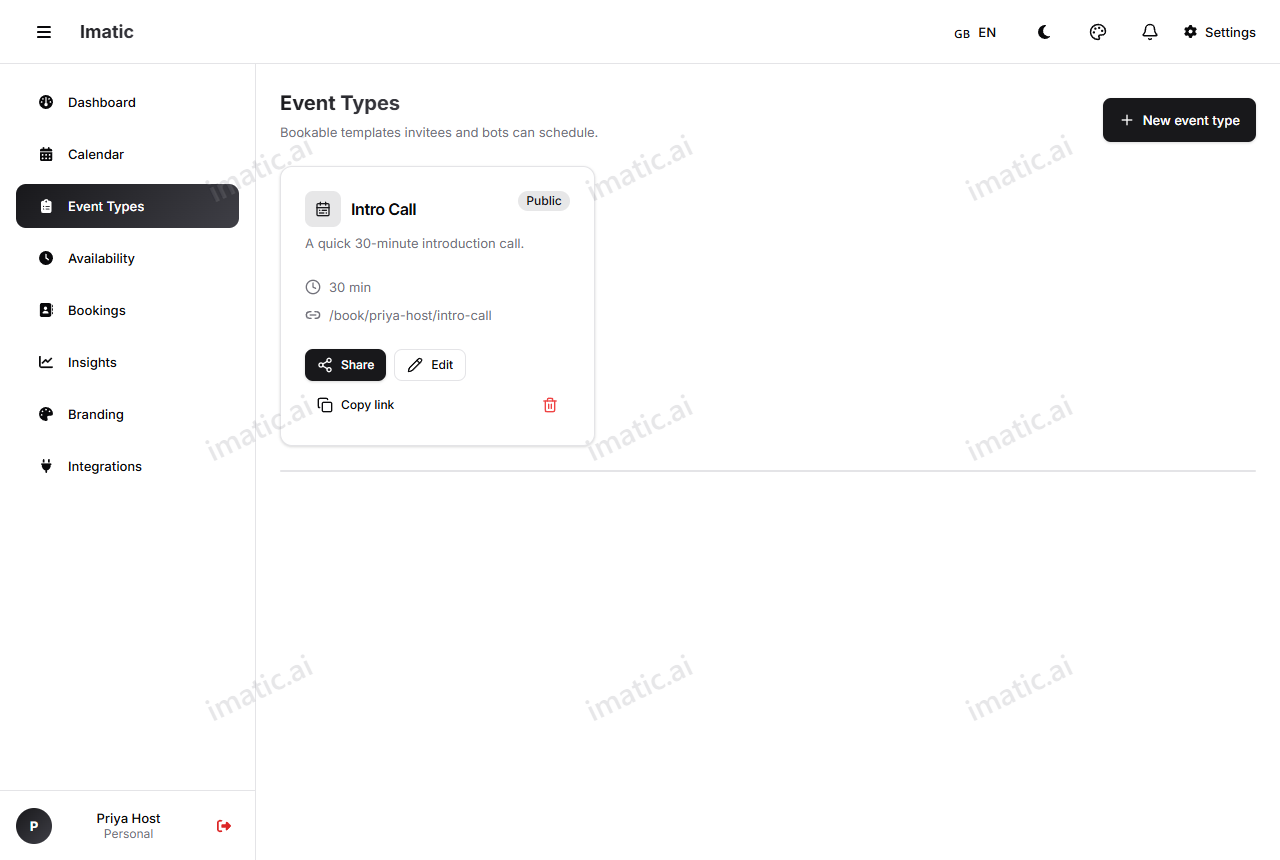
Create an event type
- Open Event types and click New.
- Give it a title (what invitees see, e.g. "Intro call") and an optional description.
- Set the duration — how long the meeting runs.
- Adjust any of the settings below.
- Save. Your link is ready to share.
The basics
- Title — the name invitees see on your booking page.
- Description — a short note about what the meeting is for. Shown on the booking page.
- Duration — how long the meeting lasts (for example, 15, 30, or 60 minutes). You can also offer multiple selectable durations (enter them as
15, 30, 60); the first is the default, and the invitee chooses which one they want when they book. - Slug — the custom URL piece for this event type. With handle
priyaand slugintro-call, the link iscalendar.imatic.ai/book/priya/intro-call. Keep it short and readable. - Color — a label color to tell event types apart at a glance in your Calendar view.
Control when it can be booked
These settings shape which slots appear on your booking page. They work together with your Availability.
- Buffer before / after — padding around each meeting so you are not booked back-to-back. A 10-minute buffer after a call keeps the next slot free for notes.
- Minimum notice — how far in advance someone must book. Set it so nobody can grab a slot 5 minutes from now.
- Maximum notice — how far into the future people can book. Useful to stop bookings months out.
- Daily cap — the most bookings of this type allowed in a single day. Once you hit the cap, that day shows no more slots.
- Slot interval — the spacing between offered start times (for example, every 15 or 30 minutes).
A short buffer plus a sensible daily cap is the easiest way to keep a busy calendar humane. The booking page only ever offers what these rules allow.
Window mode
Window mode decides the range of dates people can book:
- Rolling — a moving window, always offering the next N days from today.
- Range — a fixed start and end date (great for a one-off event or a limited campaign).
- Indefinite — no end date; bookable as far out as your maximum notice allows.
Visibility
Control who can find this event type:
- Public — listed on your profile and openly shareable.
- Unlisted — not listed publicly, but anyone with the link can book.
- Private — hidden; useful while you are still setting it up.
Require your confirmation
Turn on Requires confirmation and bookings for this event type start as pending instead of going straight onto your calendar. You then confirm or decline each request from your Bookings list — useful when you want to vet who books before committing the time. The invitee sees a "request sent" confirmation, and is notified once you approve.
Location
Choose where the meeting happens with location kind:
- Phone — you or the invitee calls; the booking captures the number.
- In person — a physical address you provide.
- Custom — any instructions you write (a Slack huddle, a venue, your own link).
- Zoom — a Zoom meeting; you supply the Zoom link.
- Google Meet / Microsoft Teams — a video meeting with an auto-generated link.
Auto-generated video links. When you've connected the matching calendar on the Integrations page, imatic Calendar mints the meeting link for you: a Google Meet link when your Google calendar is connected, and a Microsoft Teams link when your Outlook calendar is connected. The link is created when the booking is written back to that calendar and travels with the confirmation. Zoom links aren't auto-generated yet — choose Zoom (or a custom location) and paste your own link.
Offer multiple locations. You can add several location options to one event type and let the invitee pick which one they want at booking time — for example, "Google Meet or Phone."
Custom questions
Collect what you need before the meeting. Add questions invitees answer when they book:
- Question types — short text, email, phone, number, dropdown select, checkbox, or a longer textarea.
- Required — mark a question as required so booking can't complete without it.
Answers arrive with the booking and show up in your Bookings list.
After booking: redirect
Set a redirect URL to send invitees somewhere of your choosing right after they book — a thank-you page, a payment link, or a resource. Leave it blank to show the standard confirmation.