Bookings
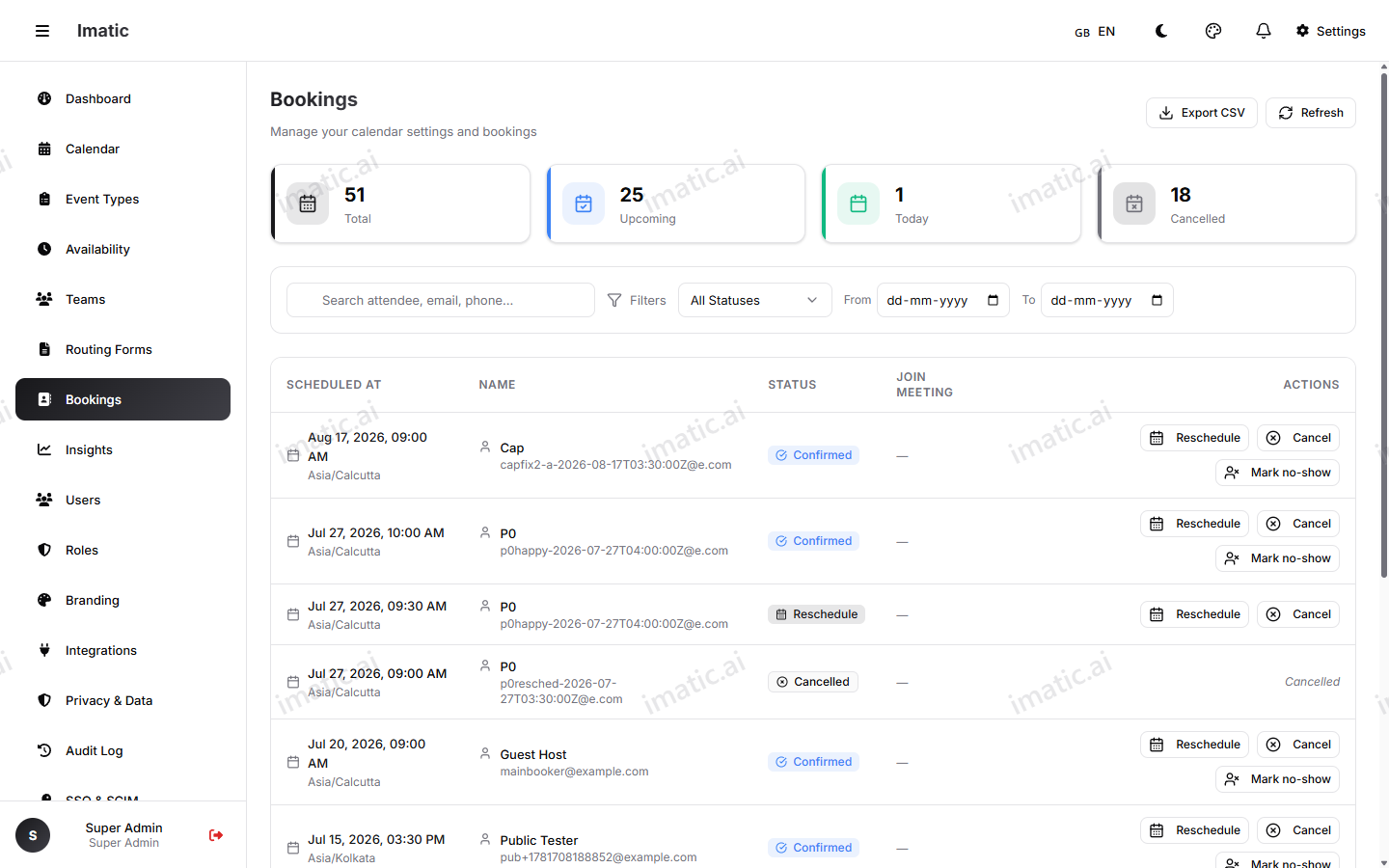
Every appointment people book lands in your Bookings list. It's your single source of truth for who's coming, when, for what, and what state each booking is in.
Open it from Bookings in your dashboard.
Browse your bookings
The list shows each booking's attendee, the event type, the time, and its status. Longer lists are paginated, so you can page through your history without everything loading at once.
Click any booking to open its details — including the answers to your custom questions and the invitee's contact info.
Search
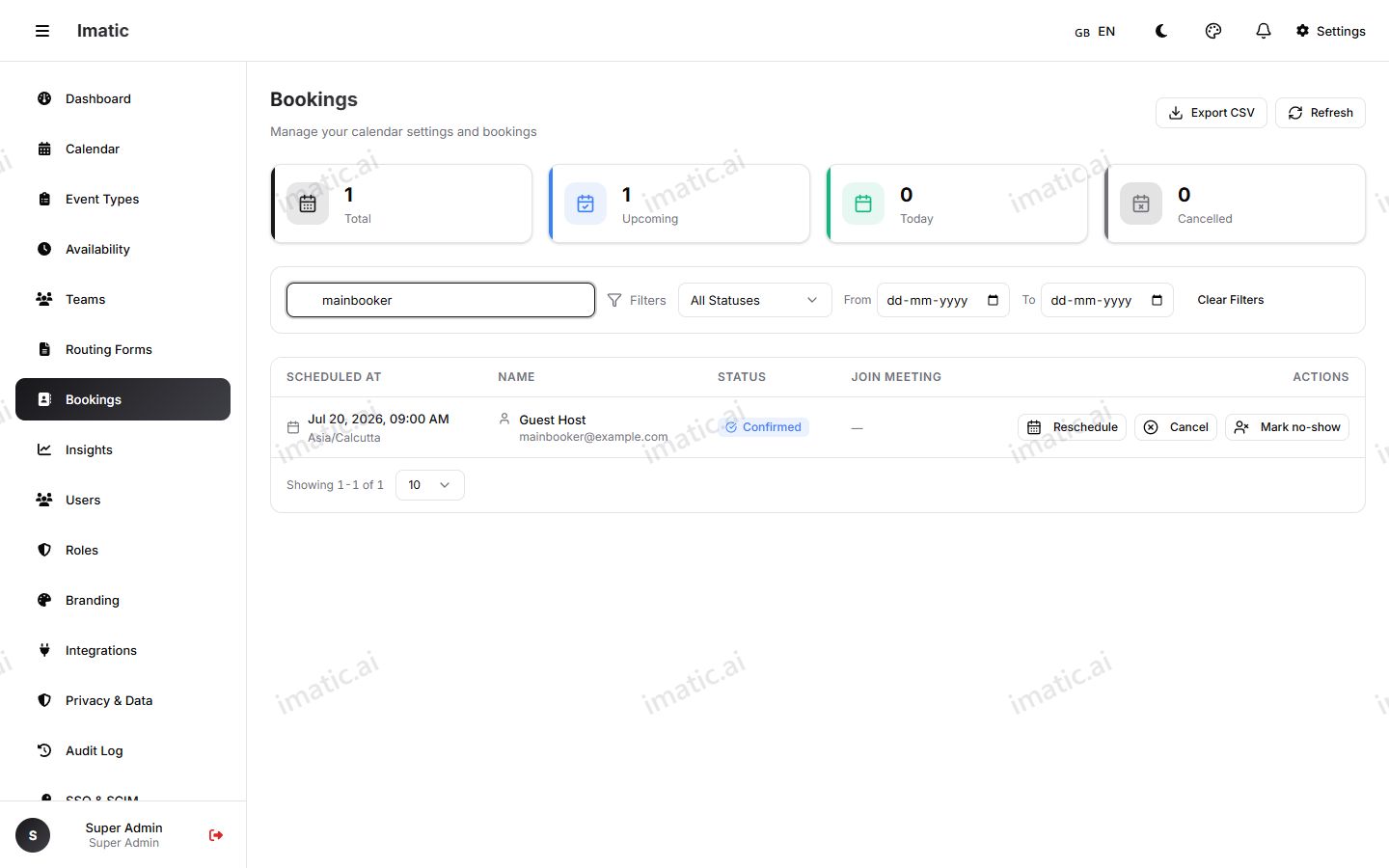
Looking for one person or one meeting? Use search to filter the list down fast — handy when your history grows.
Booking statuses
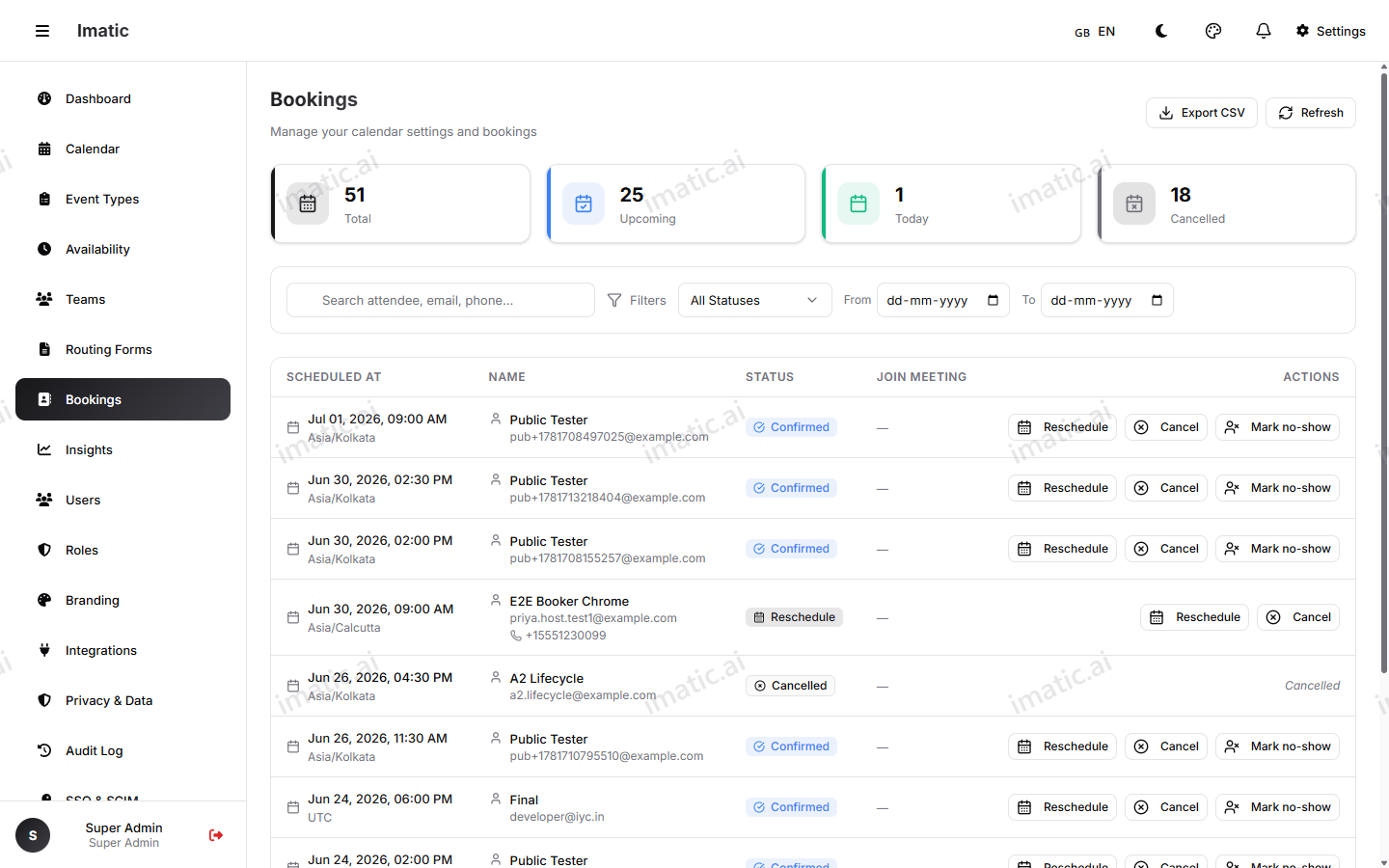
Each booking carries a status so you always know where it stands:
- Confirmed — booked and on the calendar.
- Pending — awaiting confirmation.
- Cancelled — called off; the slot is freed up again.
- Rescheduled — moved to a new time.
- No-show — the invitee didn't turn up. Mark it so your records (and the Insights on your overview) stay accurate.
When an event type requires your confirmation, new bookings arrive as pending; confirm or decline each one from this list to move it to confirmed or cancelled.
Reschedule or cancel
You're in control of every booking on your calendar.
Reschedule
- Open the booking.
- Choose Reschedule.
- Pick a new time from your available slots.
- Confirm. The booking moves and its status updates to rescheduled.
Cancel
- Open the booking.
- Choose Cancel.
- Confirm. The slot is released and becomes bookable again.
Invitees manage their own booking
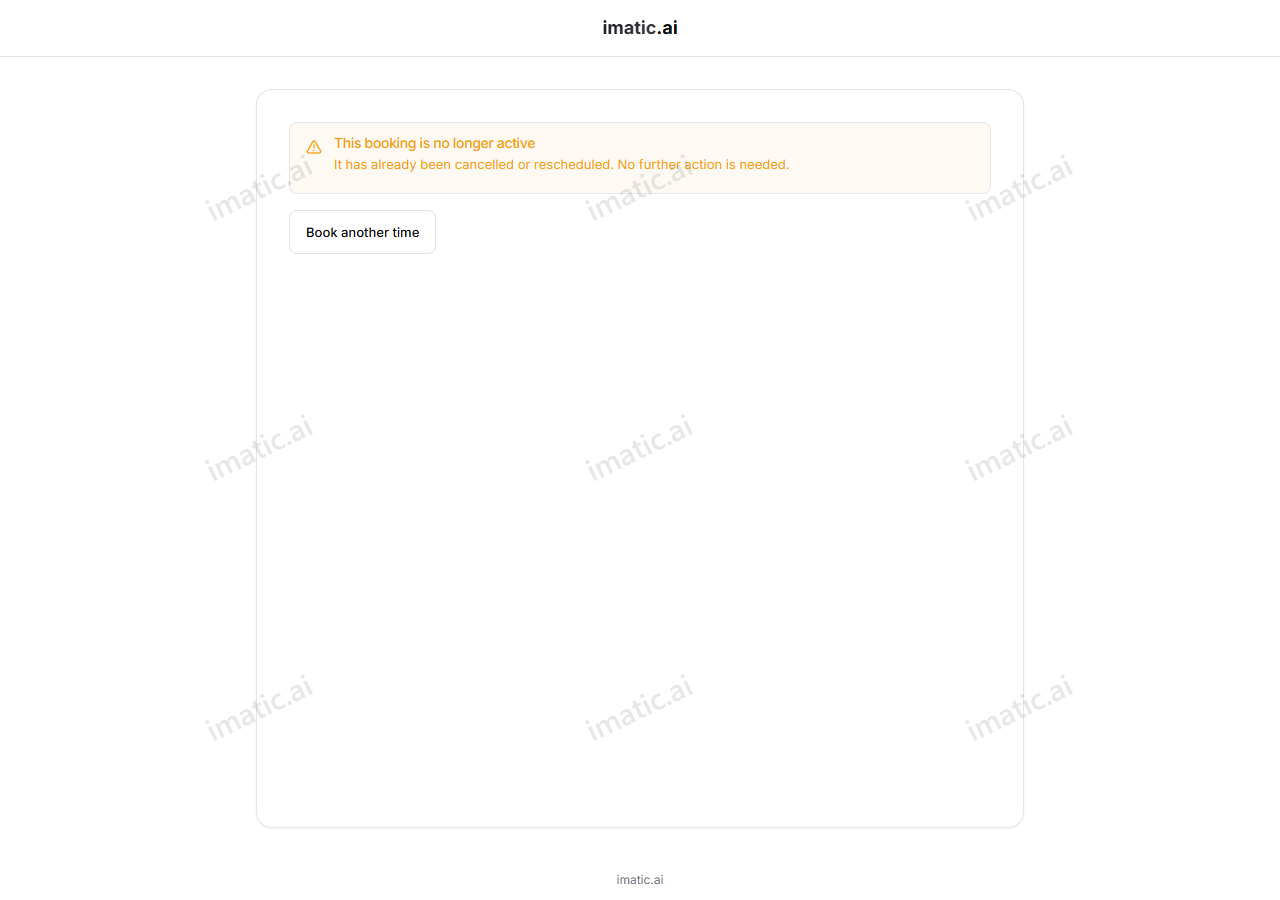
Invitees don't have to come back to you to change a plan. Every confirmation — both the confirmation page and the confirmation email — includes reschedule and cancel links. The invitee can pick a new time or call the meeting off themselves, with no account or login needed: the booking's own code is the secret in the link, so only someone who holds that confirmation can act on it. When they reschedule or cancel, the booking updates on your calendar and frees or moves the slot automatically — exactly as if you'd done it from this list.