Your public booking page
Your booking page is what the world sees when you share a link. An invitee lands on it, picks a time you're actually free, answers your questions, and books — no account needed on their end. This page walks through exactly what they experience.
Each event type has its own link, built from your handle and the event slug, for example calendar.imatic.ai/book/priya/intro-call.
The booking flow
1. Your profile
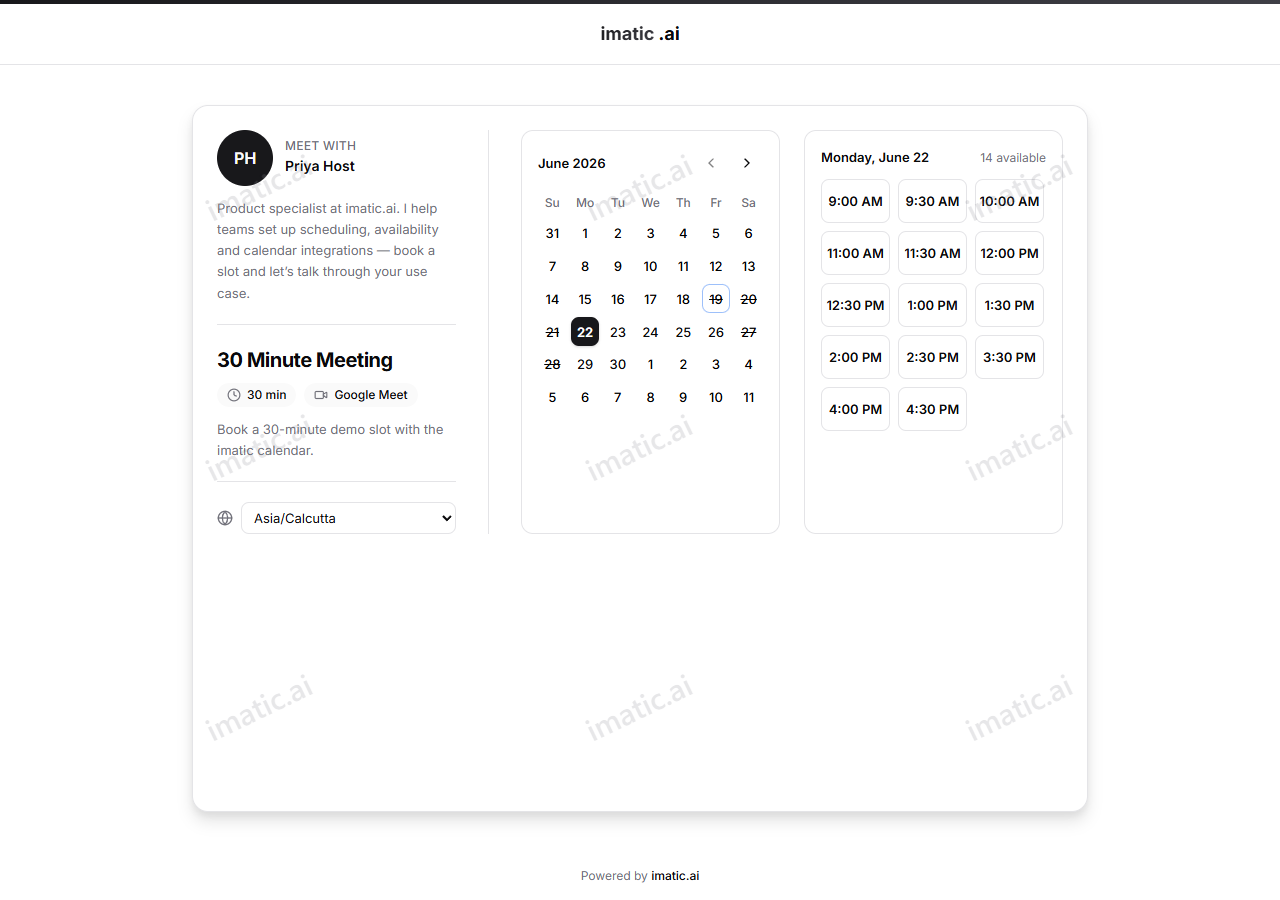
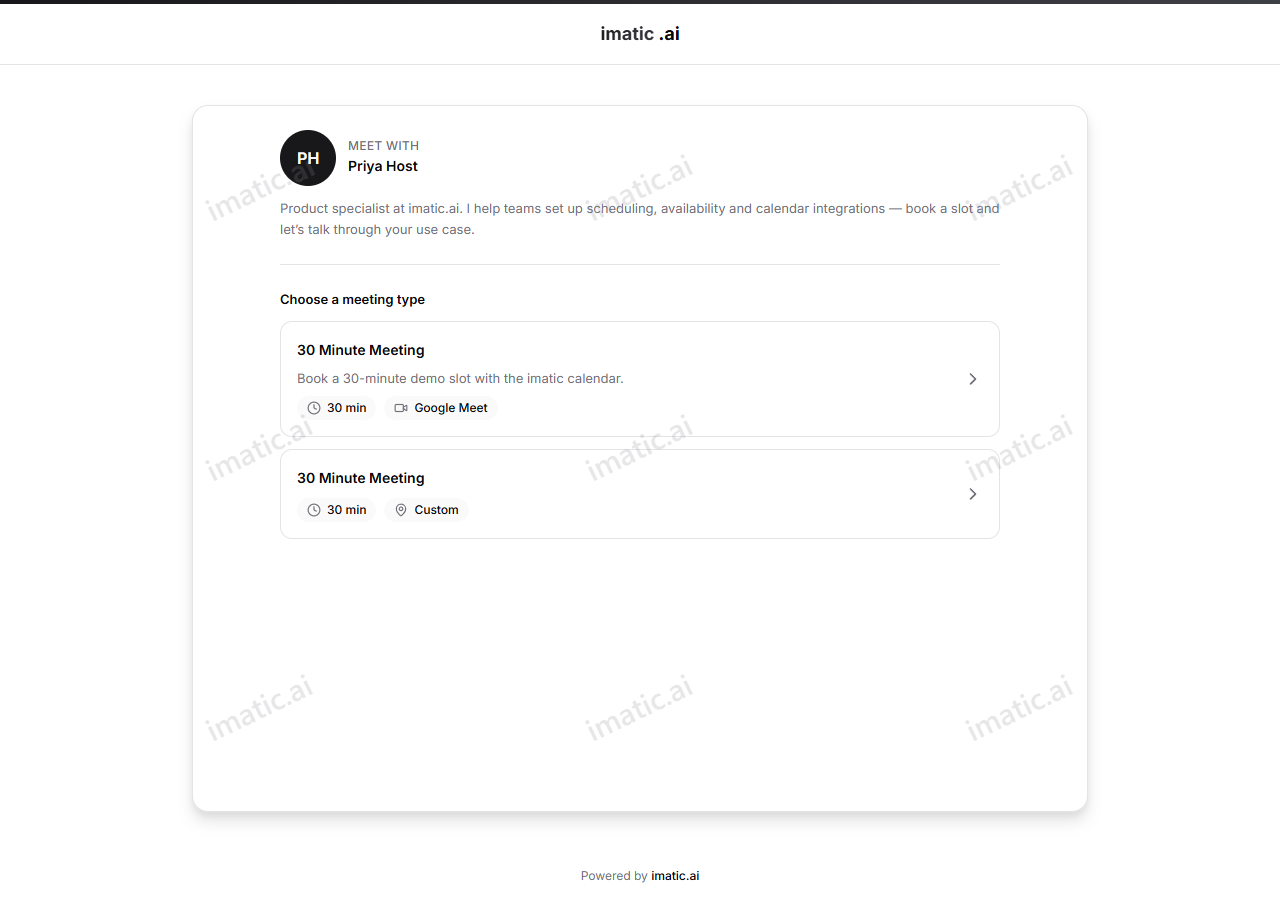
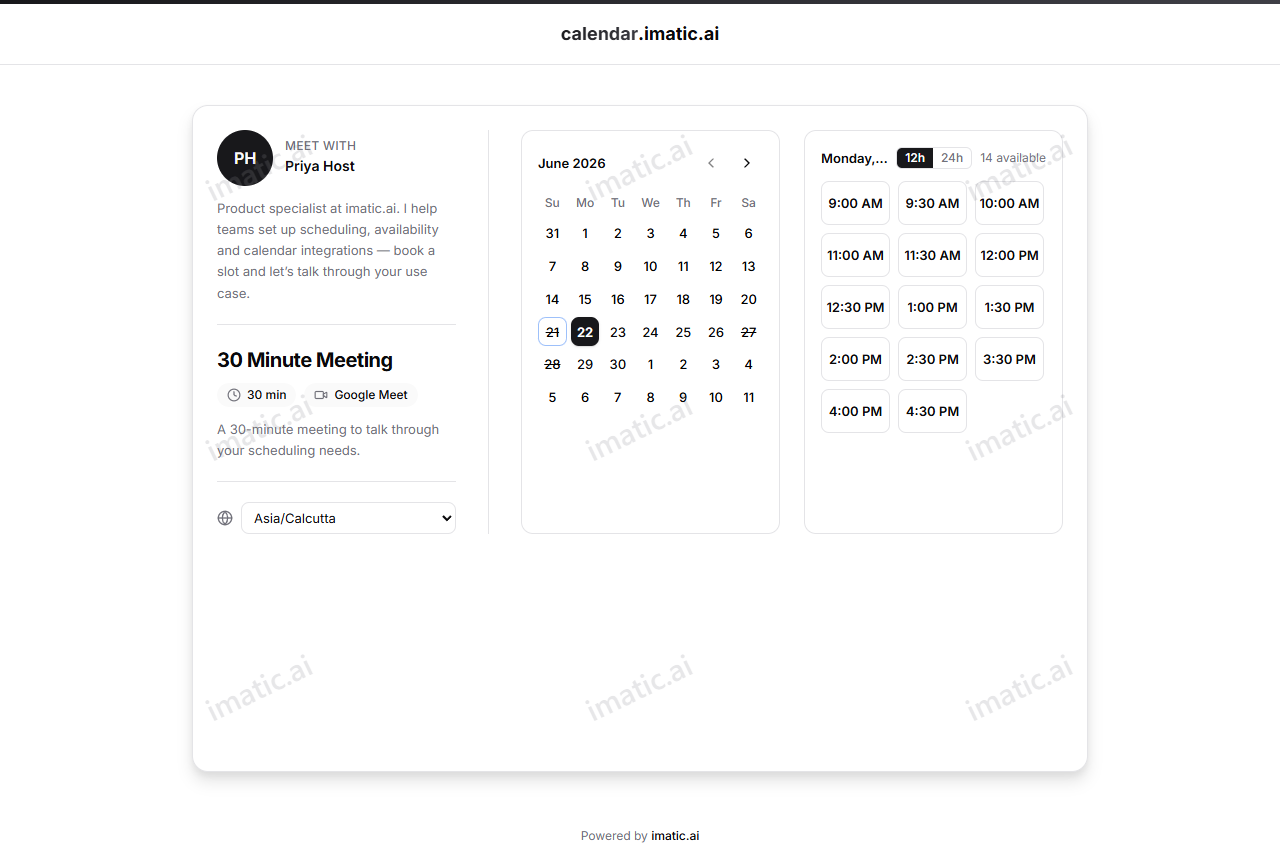
The page opens with your host profile — your name and details — so invitees immediately know they're booking the right person and the right meeting.
2. Pick a date
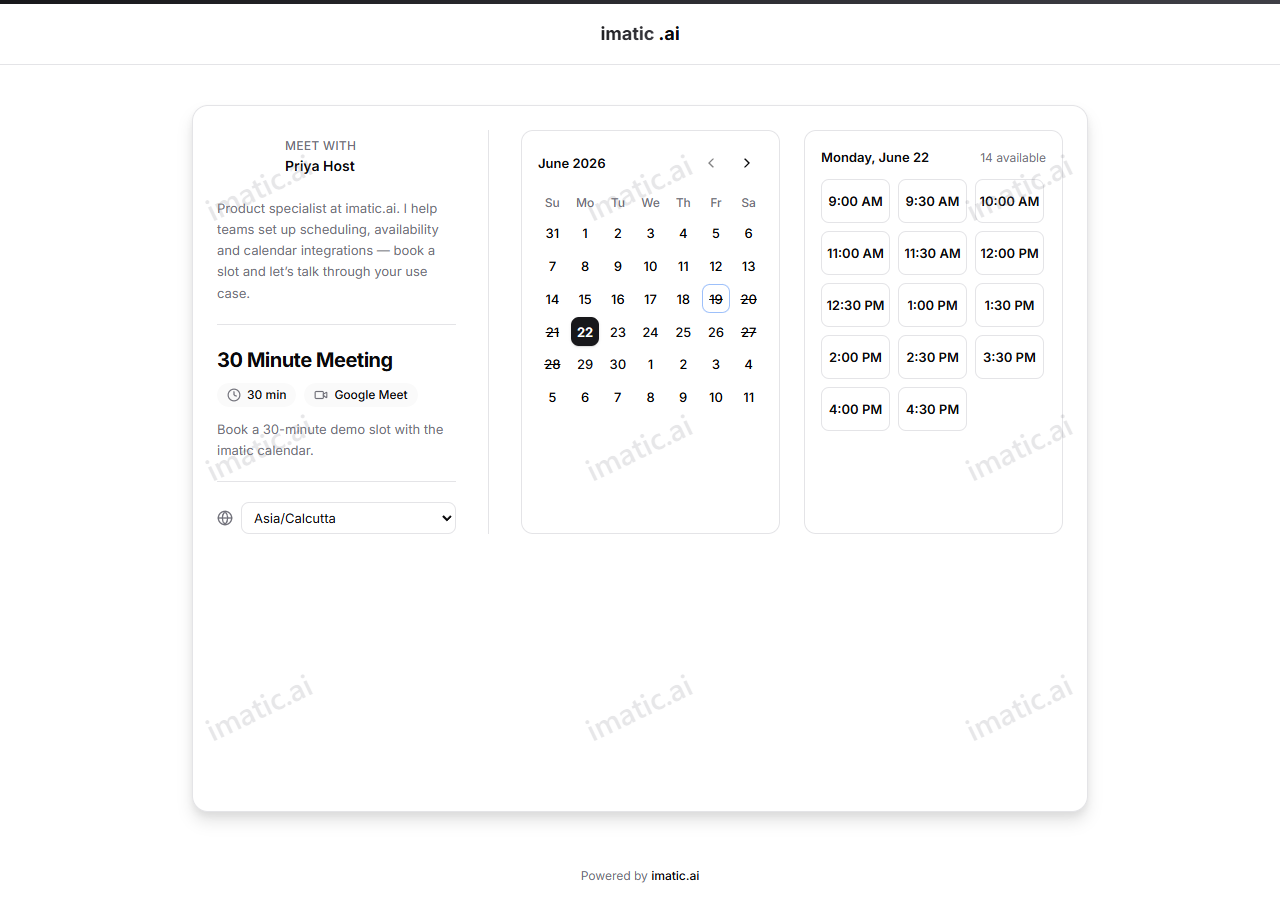
Invitees choose a date from the picker. Only dates with open time are selectable, based on your availability, date overrides, window mode, and notice limits.
3. Pick a slot
Choosing a date reveals the available start times. The slots respect every rule on the event type at once:
- your weekly hours and date overrides
- the event duration and slot interval
- buffers before and after
- minimum and maximum notice
- the daily cap
4. Answer your questions
If you added custom questions, the invitee fills them in here. Required questions must be answered before they can confirm. Their answers travel with the booking into your Bookings list.
5. Confirm
The invitee confirms, and the booking is made.
No double-bookings, ever
When an invitee confirms, imatic Calendar books the slot atomically — if two people try for the same slot at the same moment, only one succeeds and the other is asked to pick again. You won't get two bookings in the same spot.
Timezones, handled for you
Your booking page auto-detects each visitor's timezone and shows all times in theirs. You set your hours once in your own schedule timezone; invitees never have to do timezone math. Someone in London and someone in New York each see the same slot in their own local time.
What the invitee gets
After confirming, the invitee lands on a confirmation page with everything they need:
- One-click add-to-calendar — buttons to Add to Google Calendar, Add to Outlook, and Apple /
.ics(download the appointment to drop into Apple Calendar or any other calendar app). - Reschedule and cancel links — the invitee can change or call off the booking themselves, with no account needed. See invitee self-service.
- A confirmation email — sent automatically to the invitee (and to you, the host) the moment a booking is made, with the meeting details.
Team booking pages
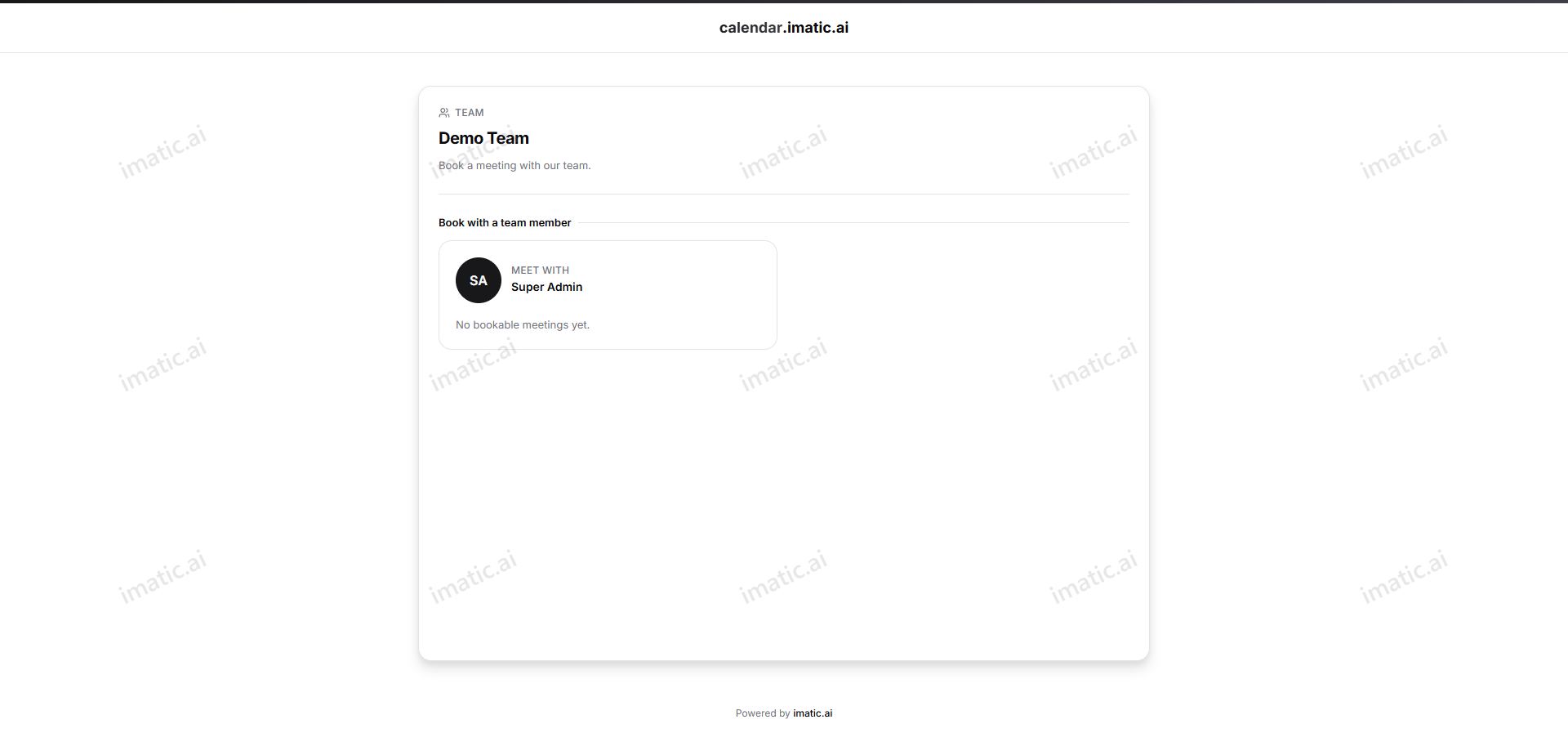
If your account has a team, the team gets its own public page where invitees book with the team rather than a single person. The page opens with the team name and a short description, then lists the bookable team members under "Book with a team member." An invitee picks the member they want to meet and books one of that member's event types — the same date picker, real-time slots, and confirmation flow as above.
Make it yours: branding
Your booking page and confirmation emails carry your branding — your organization logo, your primary color, and your support email and footer. Set these once under Branding in your dashboard, and every public booking page and email reflects them. You can also hide the "Powered by imatic" footer.
Looks great everywhere
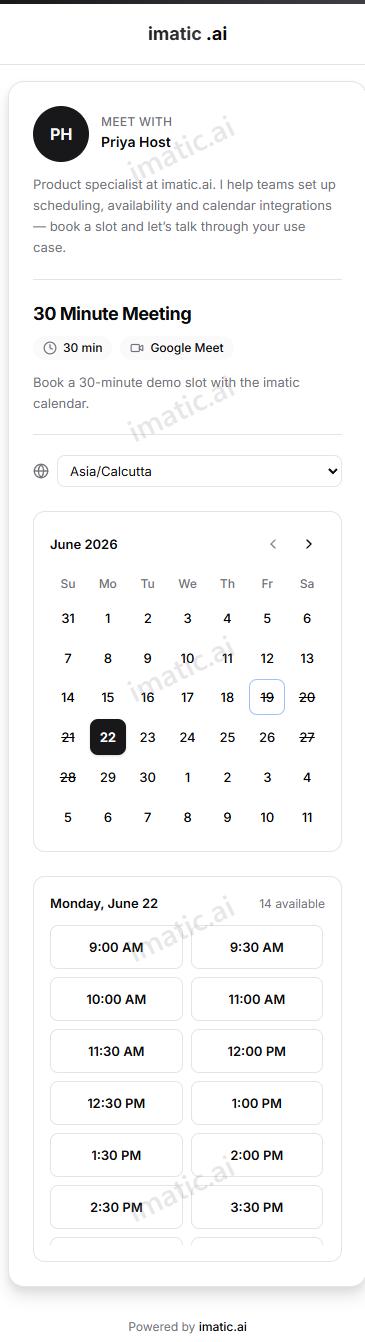
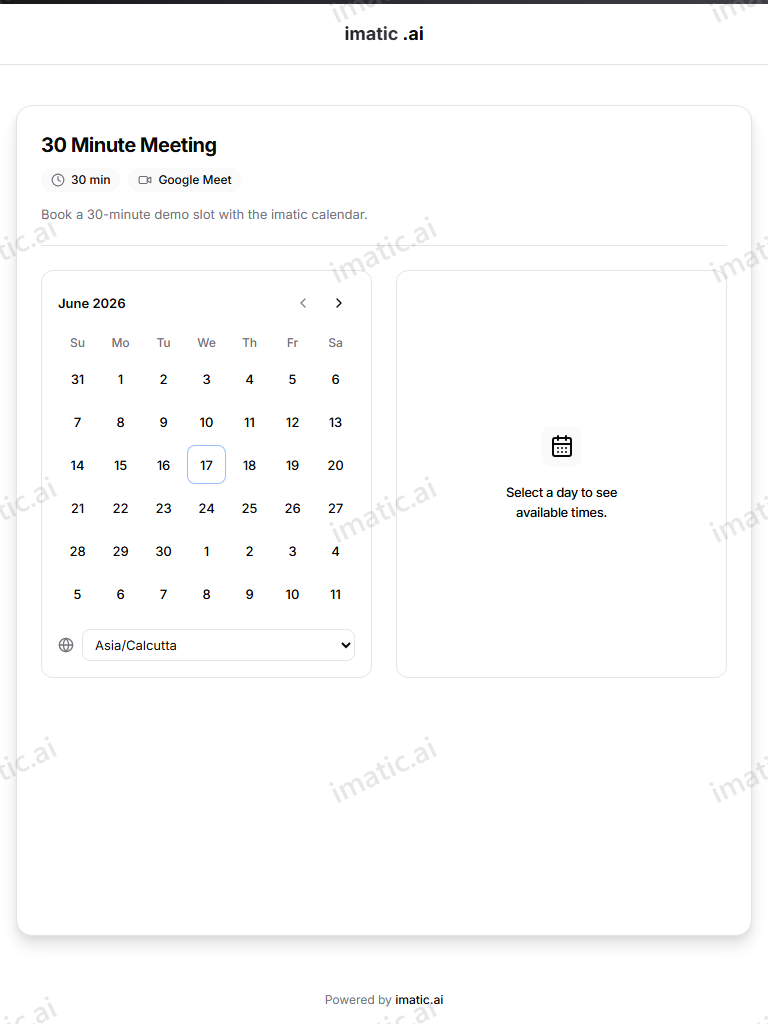
Your booking page is fully responsive and works in light or dark themes. The same page reflows from a single-column mobile flow, to a stacked tablet layout, to the full side-by-side desktop view above.